
Displaying many objects in Three.js can lower the frame rate, even when their shapes are simple. One reason is the CPU work needed to prepare rendering commands for each object.
The WebGPU version of Three.js provides the BundleGroup class, which records a set of rendering commands so they can be reused. Using BundleGroup reduces the overhead of preparing these commands and can improve performance when rendering many objects.
A key feature of BundleGroup is that it supports objects with different shapes (geometries) and appearances (materials), while allowing each object’s position and rotation to change independently.
This article uses a demo to explain how BundleGroup works, how to add it to an existing scene, and what to watch out for. The examples use Three.js with WebGPU support. For an introduction to Three.js, see the following resources:
The code in this article uses Three.js r186, the latest release as of October 2026.
Comparing rendering performance in the demo
The following demo displays objects with different geometries and materials. Open the “Parameters” tab in the Inspector at the top right. The “Use BundleGroup” checkbox toggles BundleGroup on and off. Enable “Animation” to animate each object independently.
The Inspector at the top right also shows FPS (frames per second), the number of frames displayed each second.
The improvement depends on your device and the number of objects displayed. First, turn off “Use BundleGroup” and increase “Num” until the FPS starts to drop. Then enable “Use BundleGroup” without changing the object count to compare the FPS.
In the author’s test environment, BundleGroup increased the number of objects that could be displayed at 60 FPS by about 1.4 times without animation and about 1.1 times with individual animations.
Number of objects that maintained 60 FPS. A higher count indicates better performance.
| Condition | Group (standard) | BundleGroup |
|---|---|---|
| Without animation | 4000 | 5900 |
| With animation | 3500 | 3900 |
Test environment: MacBook Pro / Apple M1 / Google Chrome 156
Techniques for reducing draw call overhead
In Three.js, a geometry defines an object’s shape, and a material defines its color and surface appearance. A mesh combines the two into an object that can be rendered. Position and rotation are set for each mesh.
Computers and mobile devices have both a CPU and a GPU. With WebGPU, the CPU prepares rendering commands, and the GPU executes them. A call that tells the GPU to draw a mesh is called a draw call.
More draw calls mean more work for the CPU. The optimization techniques discussed here aim to reduce that CPU workload.
There are several ways to reduce the overhead associated with draw calls. The following table compares the objects each technique supports and how they can be manipulated.
| Technique | Objects that can be grouped | Changing individual positions and rotations |
|---|---|---|
| 1. Instancing | Meshes with the same geometry and material | Each instance’s position and rotation can be specified with a matrix |
| 2. Merging geometries | Meshes with different geometries and the same material | The result is a single mesh, so the original objects cannot be manipulated independently |
| 3. BundleGroup | Meshes with different geometries and materials | Each mesh’s position and rotation can be changed independently |
1. Instancing
Instancing renders multiple copies of the same geometry in a single draw call. It is useful when drawing many objects with the same shape. In Three.js, use the InstancedMesh class. Each instance’s position, rotation, and other transforms can be changed independently. For more about instancing, see “サンプルで理解するWebGL 2.0 - WebGL 2.0の利点とは” (in Japanese).
2. Merging geometries
Merging combines multiple geometries into a single geometry. It is suitable for static objects, such as backgrounds. Because the result is a single mesh, it is unsuitable when the original objects need to rotate independently. If you split the geometry into groups that use different materials, each group requires a separate draw call. For details, see “Three.jsの高速化手法:ジオメトリの結合” (in Japanese).
3. BundleGroup
BundleGroup, the focus of this article, reduces CPU overhead by reusing rendering commands. It can group meshes with different geometries and materials.
Note: The demo’s “Draw calls” counter shows renderer.info.render.drawCalls. A reading of “Draw calls: 1” does not mean the GPU executes only one draw command. The counter does not include commands inside a reused bundle.
Using BundleGroup
The basic setup is simple: add meshes to a BundleGroup instead of directly to the scene or a Group. Because BundleGroup is a WebGPU feature, use the WebGPURenderer class.
Replace scene.add(mesh), which adds a mesh to the scene, with these three lines. Additional settings are needed when moving the camera or meshes, as explained below.
const bundleGroup = new THREE.BundleGroup();
scene.add(bundleGroup);
bundleGroup.add(mesh);
The following example outlines how to rotate two meshes independently, each with a different geometry and material.
import * as THREE from "three/webgpu";

// Use WebGPURenderer for WebGPU rendering.
const renderer = new THREE.WebGPURenderer();

// Set up the renderer, scene, and camera (omitted).

// 1. Create a BundleGroup.
const bundleGroup = new THREE.BundleGroup();
// Allow changes to mesh positions and rotations to take effect.
bundleGroup.static = false;
scene.add(bundleGroup);

// Create box and torus meshes with different geometries and materials (omitted).
const meshes = [box, torus];

// 2. Add the meshes to optimize to the BundleGroup.
for (const mesh of meshes) {
  // Record every mesh so camera movement does not leave objects out.
  mesh.frustumCulled = false;
  bundleGroup.add(mesh);
}

// 3. Rotate each mesh independently in the animation loop.
renderer.setAnimationLoop(() => {
  box.rotation.y += 0.01;
  torus.rotation.x += 0.05;
  renderer.render(scene, camera);
});
To change mesh positions or rotations dynamically, set the BundleGroup’s static property to false.
A mesh’s frustumCulled property controls whether it is excluded from rendering when outside the camera’s view. Set this property to false for each mesh in a BundleGroup so the recorded commands include meshes outside the view. The section “Objects outside the camera’s view are also submitted for rendering” below explains why.
How BundleGroup works
WebGPU is designed to handle rendering commands more efficiently than WebGL. Even so, recording thousands of commands from JavaScript every frame still puts a load on the CPU.
A WebGPU render bundle records and stores a sequence of commands, including rendering state for materials and draw calls. Three.js uses these render bundles internally in BundleGroup.
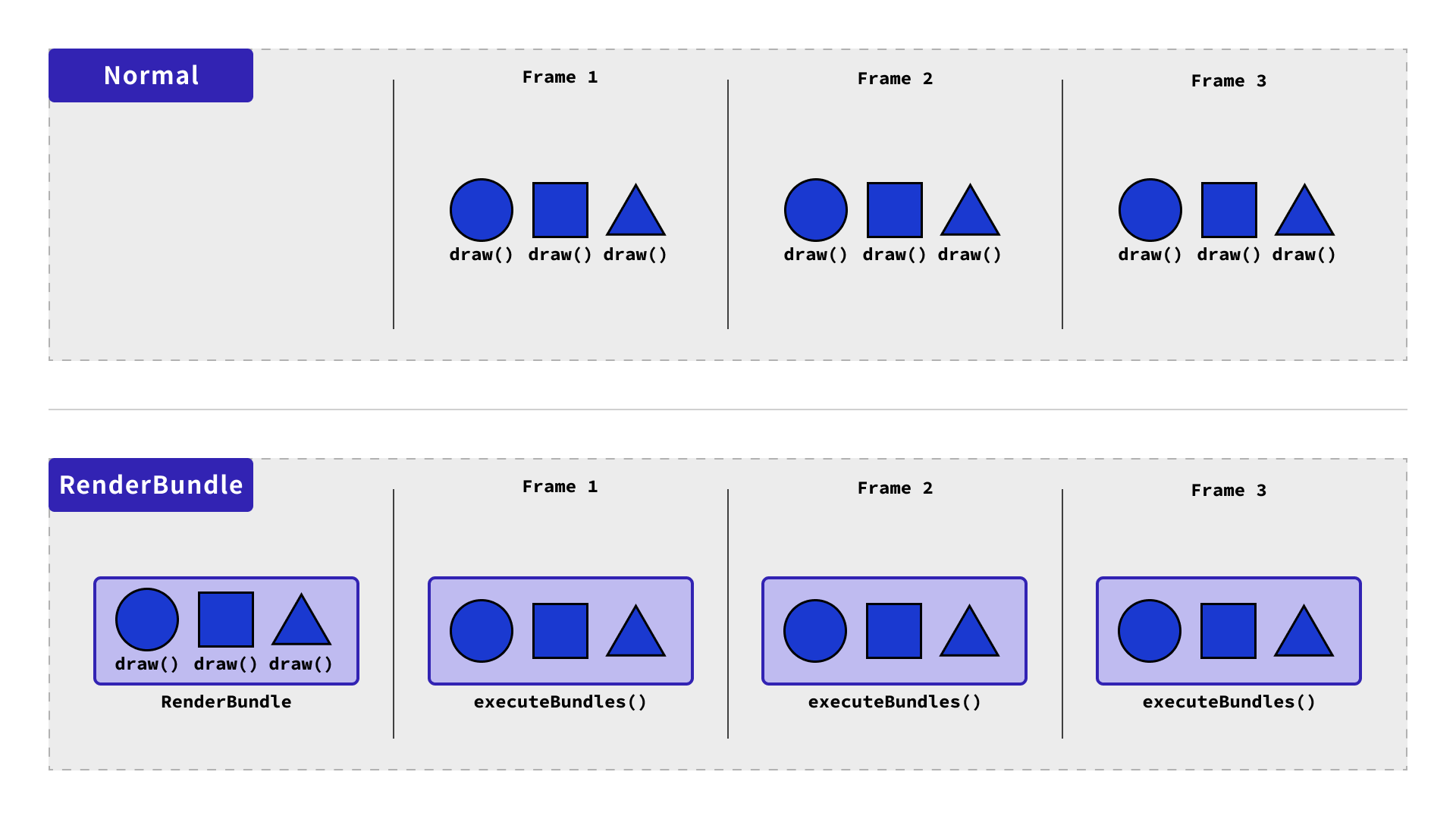
For example, to render three meshes, you would normally record their draw commands with draw() every frame. A render bundle records those three commands once, then executes them together each frame with executeBundles().
This reduces the command recording and API calls needed each frame, lowering the CPU workload. In both cases, the GPU still renders three meshes every frame.
Comparison of the work needed to render three meshes. The top row shows standard rendering, and the bottom row uses a render bundle.
Things to watch out for
Objects outside the camera’s view are also submitted for rendering
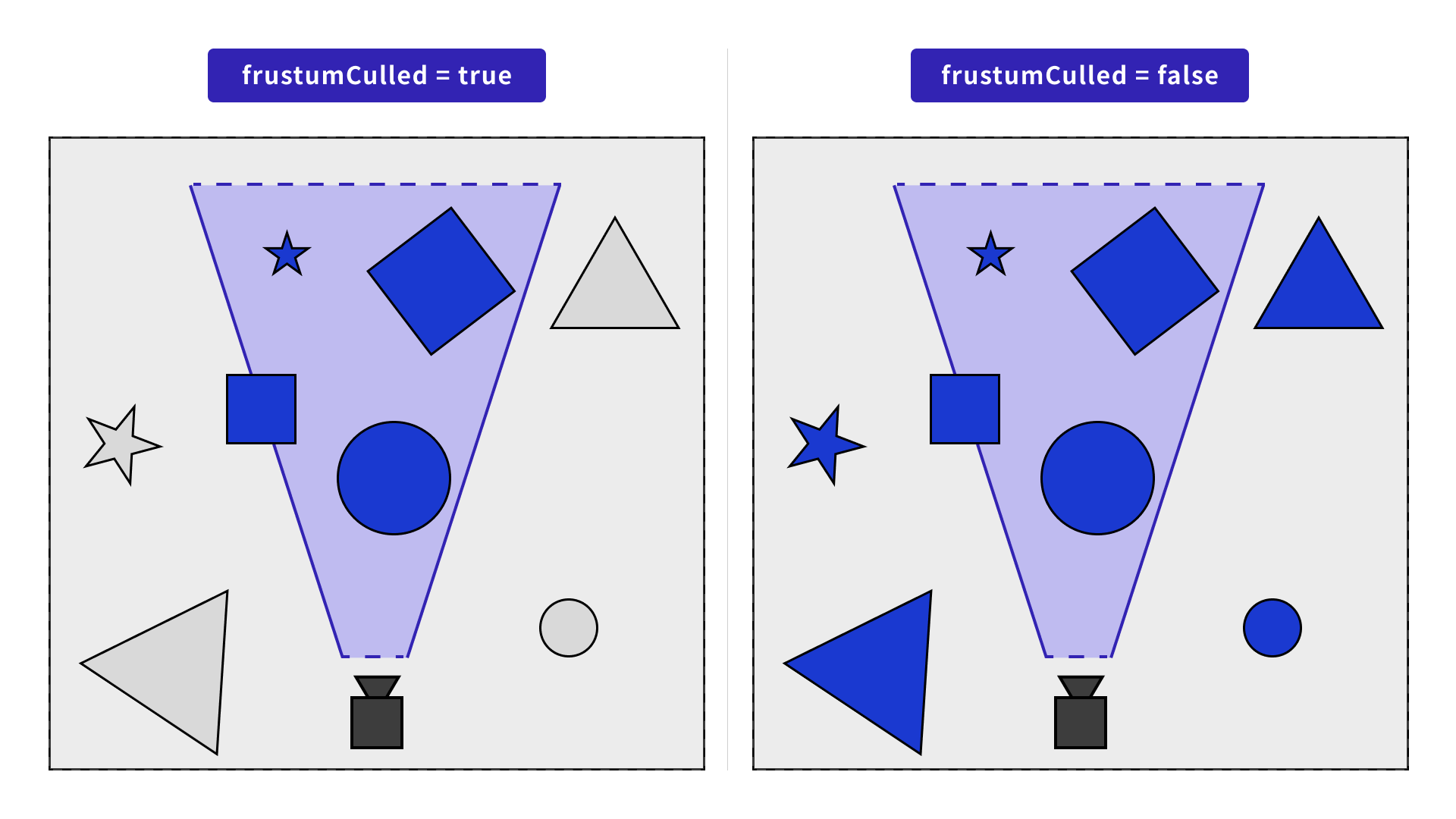
Three.js normally uses the CPU to roughly determine whether each mesh is within the camera’s view, excluding meshes outside it from rendering. This is called frustum culling. Rendering only what is visible reduces the workload.
With a BundleGroup, individual meshes cannot be removed from the recorded commands as the camera moves. Conversely, if a mesh was outside the view when the commands were recorded and was omitted, it will not appear when the camera later turns toward it.
Setting each mesh’s frustumCulled property to false ensures that commands are recorded for every mesh, including those outside the view.
However, the GPU also executes commands for those meshes, including processing vertices that are not visible. In a scene with many objects outside the view, such as a walkthrough of a large city, rendering without BundleGroup may be faster.
Comparison with and without frustum culling. Blue meshes are included in the rendering commands, and gray meshes are excluded. Disabling frustum culling for each mesh does not change the visible area on screen.
The demo uses standard frustum culling when “Use BundleGroup” is off. Move the camera closer so fewer meshes are visible, and you will see “Draw calls” decrease and FPS increase.
When “Use BundleGroup” is on, commands for every mesh are executed even when the camera moves closer, so the number of rendering commands stays the same. Consider whether your scene needs a reduction in CPU work or GPU work.
Note: When meshes are outside the view, pixel color calculations, which can be expensive, are skipped. This limits the increase in GPU workload.
Watch the rendering order of transparent objects
Transparent objects are displayed by blending their colors with the background that has already been drawn. Because the order affects the result, opaque objects are normally drawn first, followed by transparent objects from back to front.
Example of transparent red, green, and blue squares over an opaque image. The arrows show their order from nearest to farthest from the camera. The red square labeled R and the blue square labeled B switch positions between the two examples, so drawing them correctly from back to front changes the colors where they overlap.
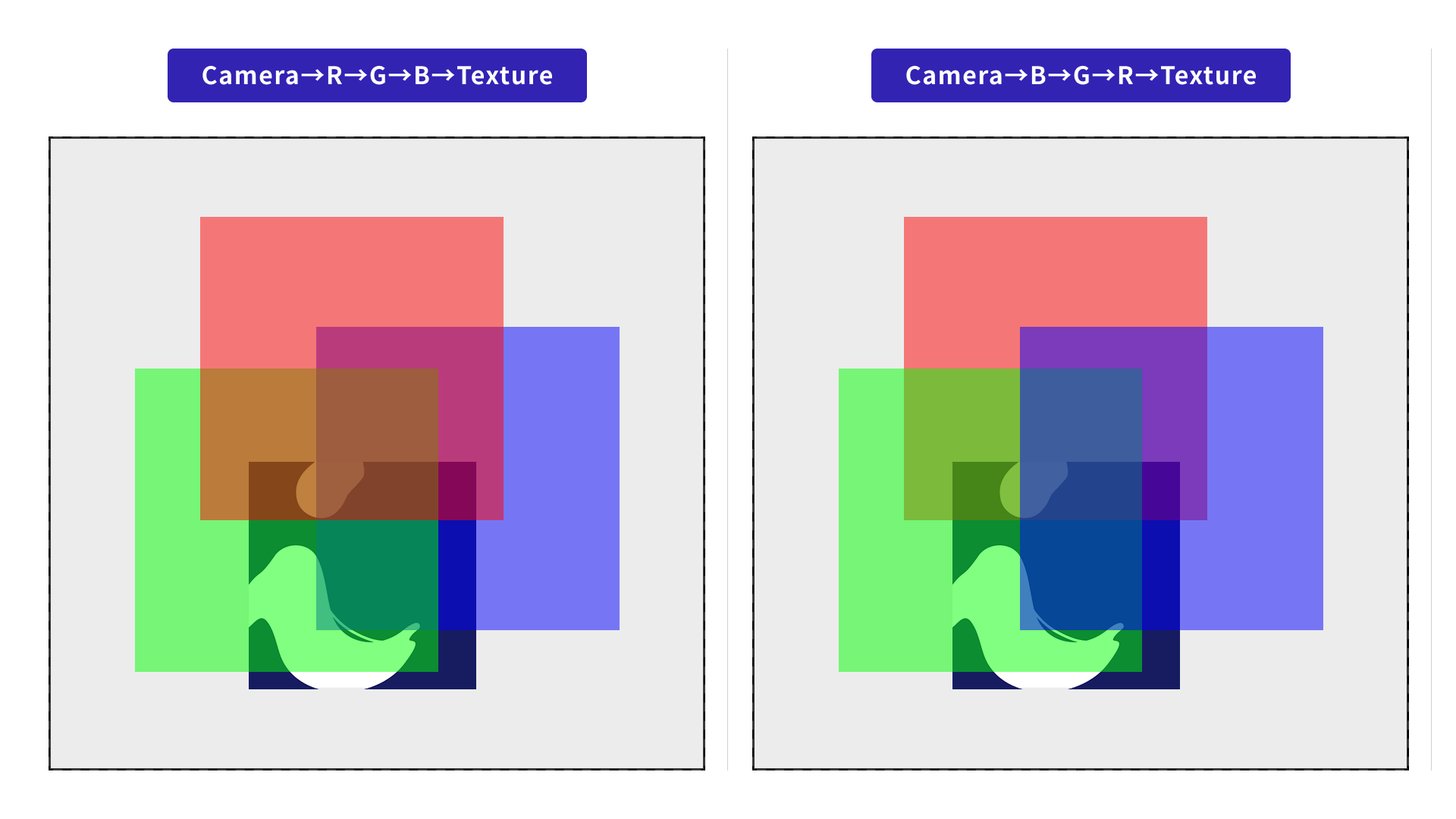
The order of commands in a render bundle stays fixed while the bundle is reused. Even if the relative depth of meshes changes from the camera’s perspective, the original drawing order is preserved. As a result, overlapping meshes may blend with colors that do not match their depth order.
Three.js also does not sort transparent meshes within a BundleGroup from back to front. Even with a stationary camera and meshes, the overlap may be incorrect. For scenes containing transparent meshes, compare the appearance before and after applying BundleGroup to check that overlaps and colors look as intended.
Record commands again after adding or removing meshes
After commands have been recorded, calling add() or remove() alone will not update what appears on screen. When adding or removing a mesh, set the BundleGroup’s needsUpdate property to true so commands are recorded again on the next render.
The following example assumes the mesh to add is stored in newMesh.
newMesh.frustumCulled = false;
bundleGroup.add(newMesh);
// Record commands again to reflect the updated group contents.
bundleGroup.needsUpdate = true;
Also set bundleGroup.needsUpdate = true when making the following changes to meshes in a BundleGroup:
- Toggling visibility with the
visibleproperty - Changing the geometry
- Changing the material
- Replacing the material itself
- Replacing a texture
- Changing settings that affect rendering commands, such as
wireframe
However, recording commands again too often removes the benefit of reuse. In the worst case, such as recording the commands again every frame, performance may be worse than rendering without BundleGroup.
Conclusion
The following points can help you decide whether to use BundleGroup:
- For scenes with two or more objects,
BundleGroupis worth trying. - For scenes where objects frequently move in and out of the camera’s view, rendering without
BundleGroupmay be faster. Measure performance before deciding. - For scenes containing transparent objects, use it carefully because the appearance may be incorrect. Consider whether any visual inaccuracies are acceptable in exchange for better performance.
BundleGroup can improve performance when the CPU work involved in rendering is a bottleneck. It is flexible and easy to add to existing code. In the author’s view, it is an optimization worth trying in scenes that display multiple meshes. Try it in your own scenes, keeping the caveats in this article in mind.