Lottie is a technology and file format for animating vector images. It was developed with the involvement of engineers at Airbnb.
In the previous article, we covered the basics of Lottie, how to create animations with Figma, and how to export them with LottieFiles.
This article introduces how to create Lottie animations with Adobe After Effects, export them, and preview the result.
Lottie example:
Creating and exporting with Bodymovin
This section introduces two export workflows. The first creates an animation in After Effects and exports it with Bodymovin. The second exports it with LottieFiles.
1. Prepare SVG assets and create the animation in After Effects
Many workflows create assets in Adobe Illustrator, another Adobe product. They are then imported into After Effects for animation, so this article uses that approach.
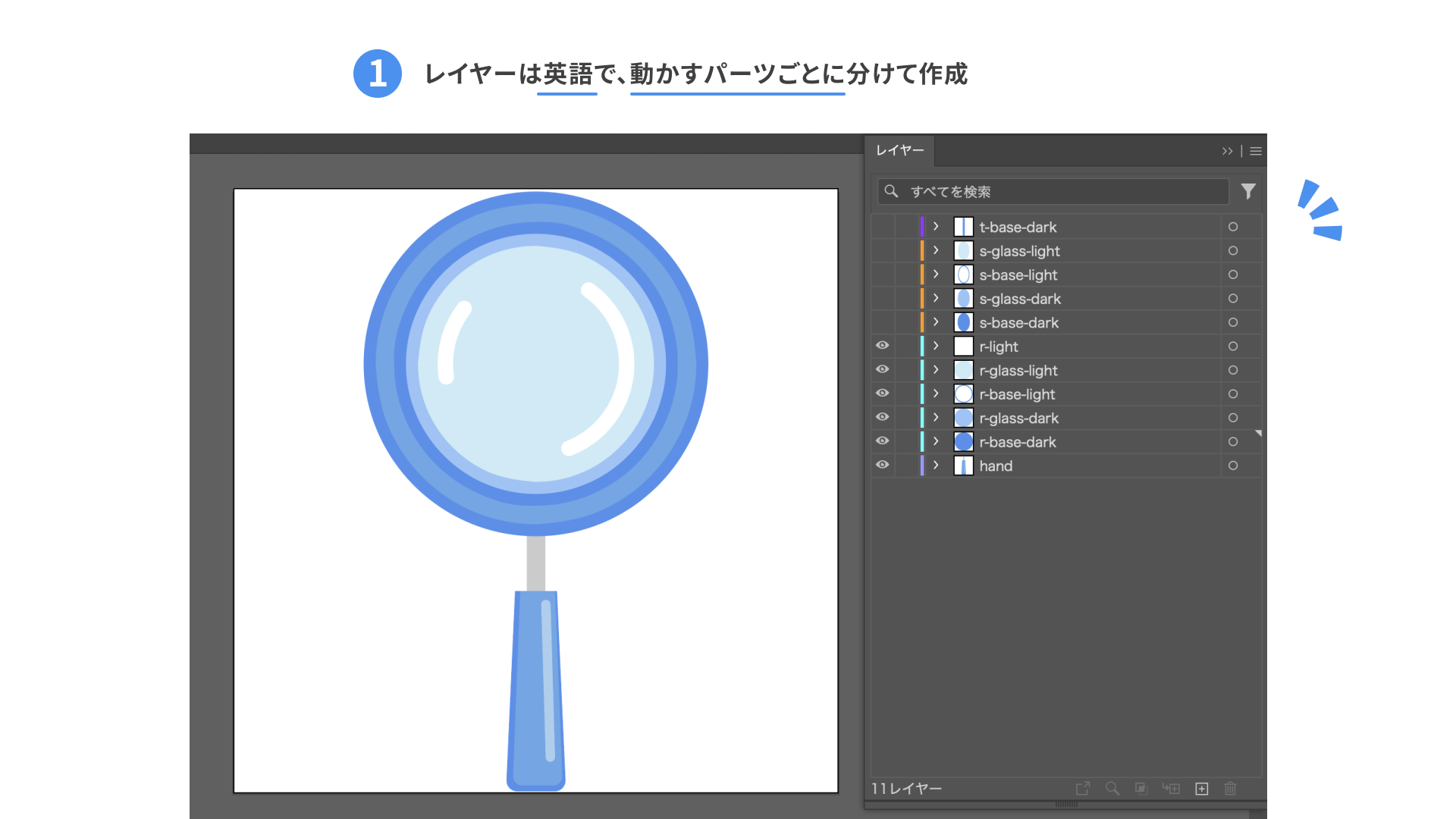
- Illustrator: Create the SVG with separate layers for the parts you want to animate.
- To avoid display problems when exporting to Lottie, using English layer names is recommended.
- If you want to use gradients in the illustration, there are some caveats. See the later section “When files do not display correctly”.
Illustrator screen. Some helper parts used while creating the animation are hidden.
- Import the assets into After Effects.
- Choose File, then Import, then File, and select the Illustrator file you created.
- Change Import As to Composition and click Open.
You can change composition settings later, so any import type is fine.
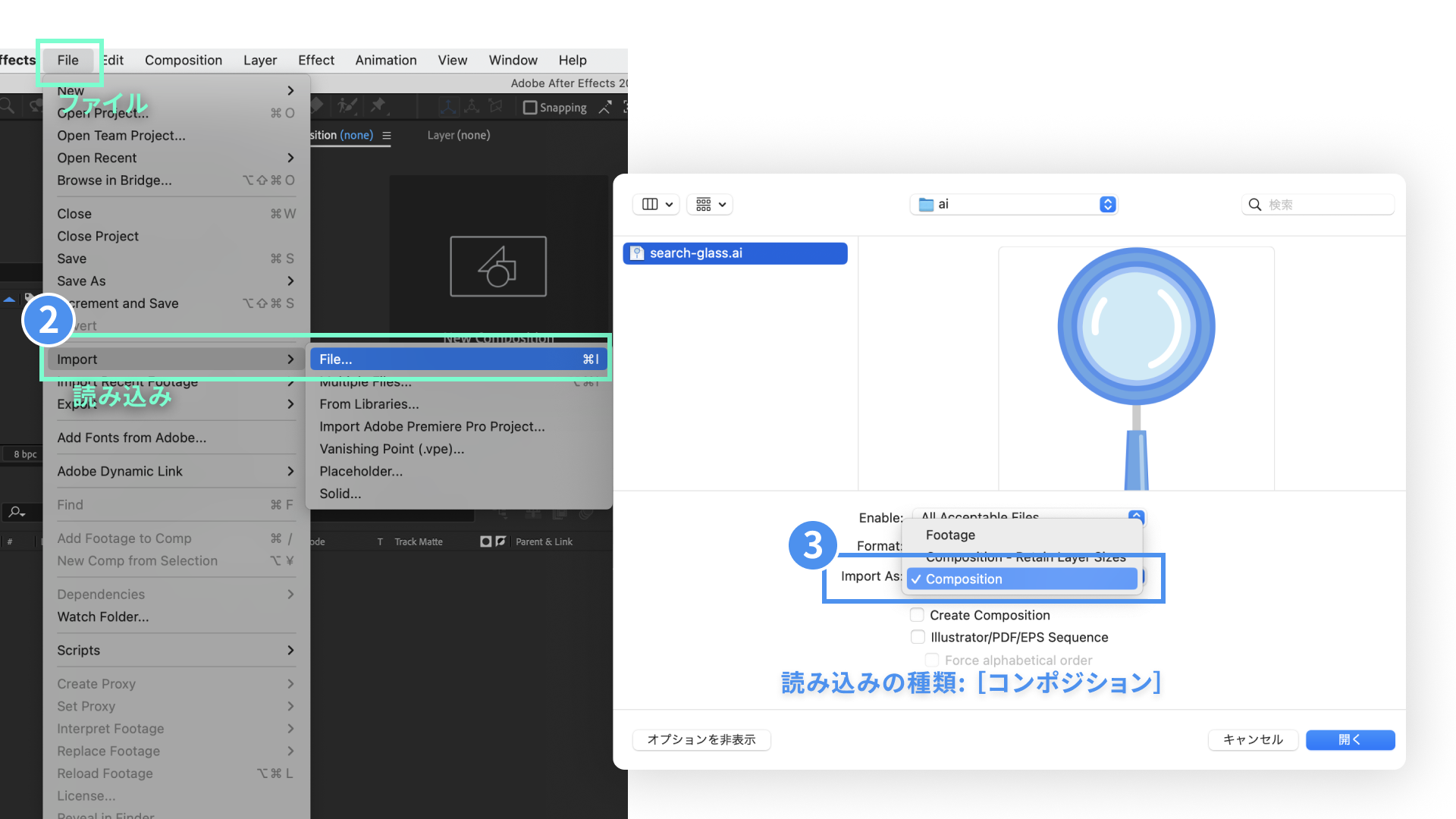
After Effects is shown in English because a problem mentioned later in “When files do not display correctly” occurred in the past.
-
Select all layers, right-click, then choose Create, then Create Shapes from Vector Layer.
-
The AI file layers are no longer needed, so you can delete them.
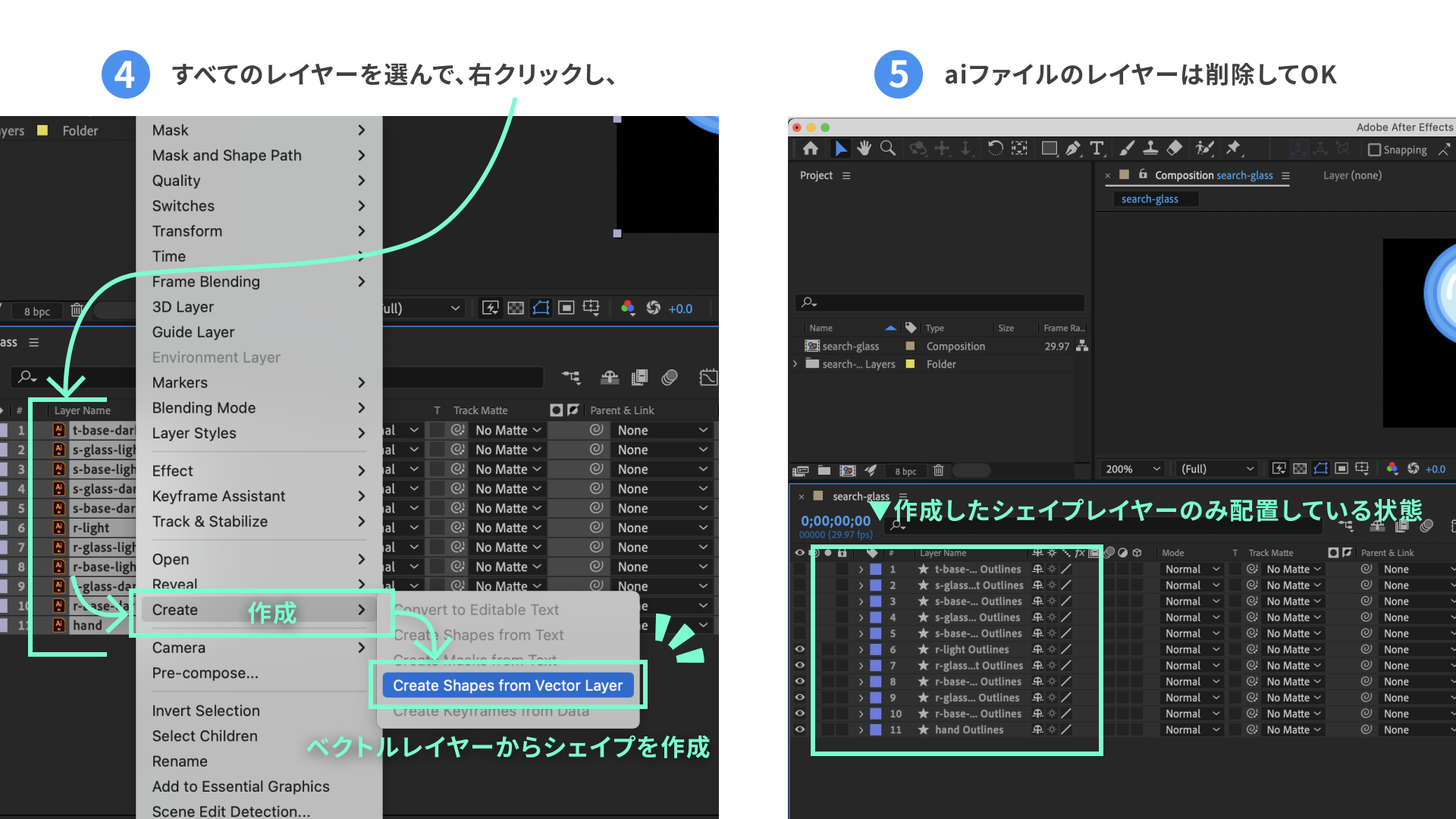
- Create the animation. The detailed animation process would make this article too long, so it is omitted.
- After Effects can create many kinds of animation, but only some features can be reproduced in Lottie. See the supported features table for details.
As a side note, the author once created an animation with the Puppet tool without fully understanding all supported Lottie features. During preview, the animation did not move and had to be recreated. Be careful as well. It is important to check supported properties in advance and preview the result periodically, as described later.
2. Install the After Effects extension Bodymovin
Next, install the extension needed for export.
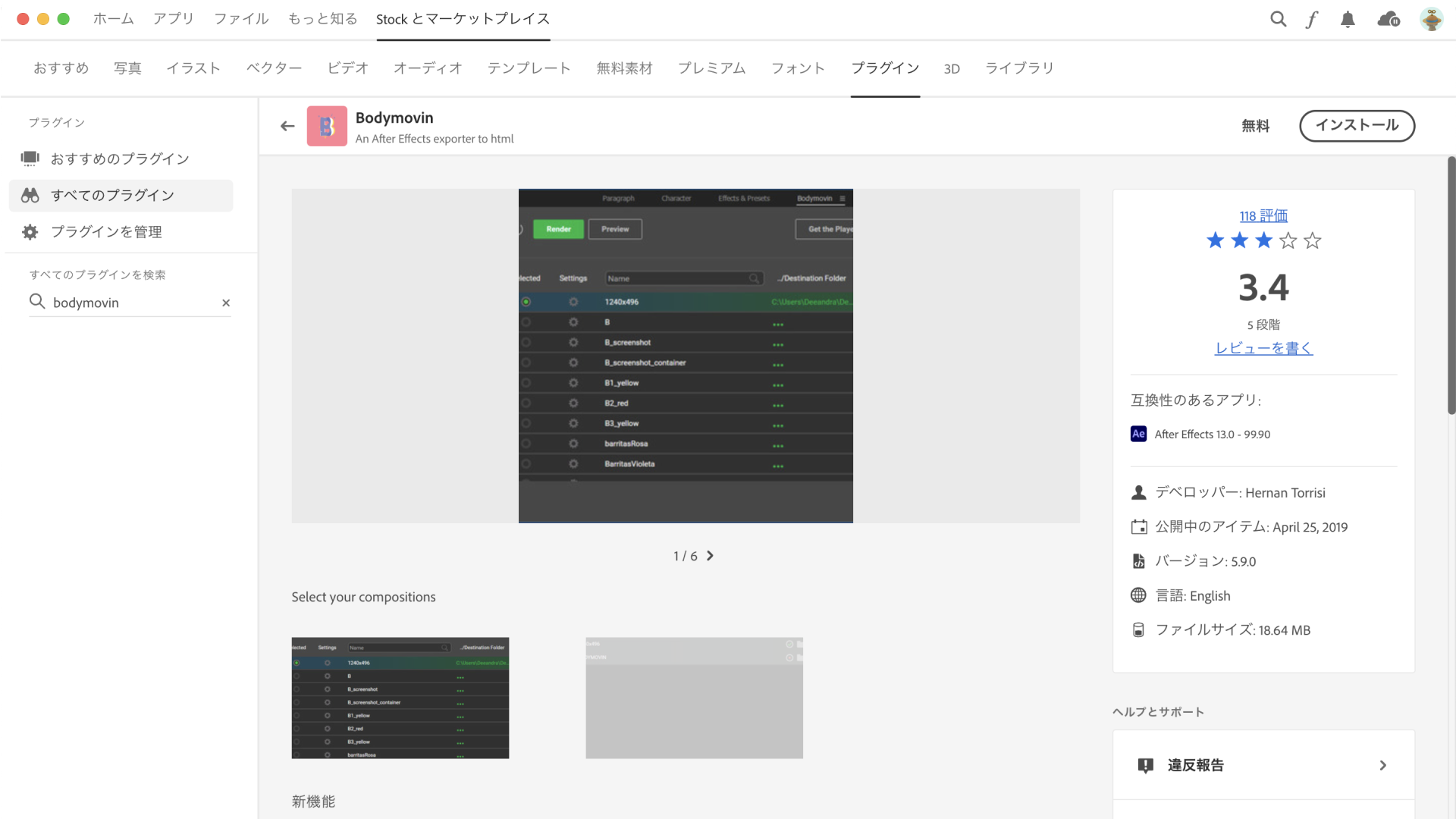
In the Adobe Creative Cloud app, go to Stock & Marketplace, then Plugins. Search for Bodymovin and click Install.
You can also install it from the browser page.
Adobe Creative Cloud | Bodymovin plugin
3. Enable After Effects extensions
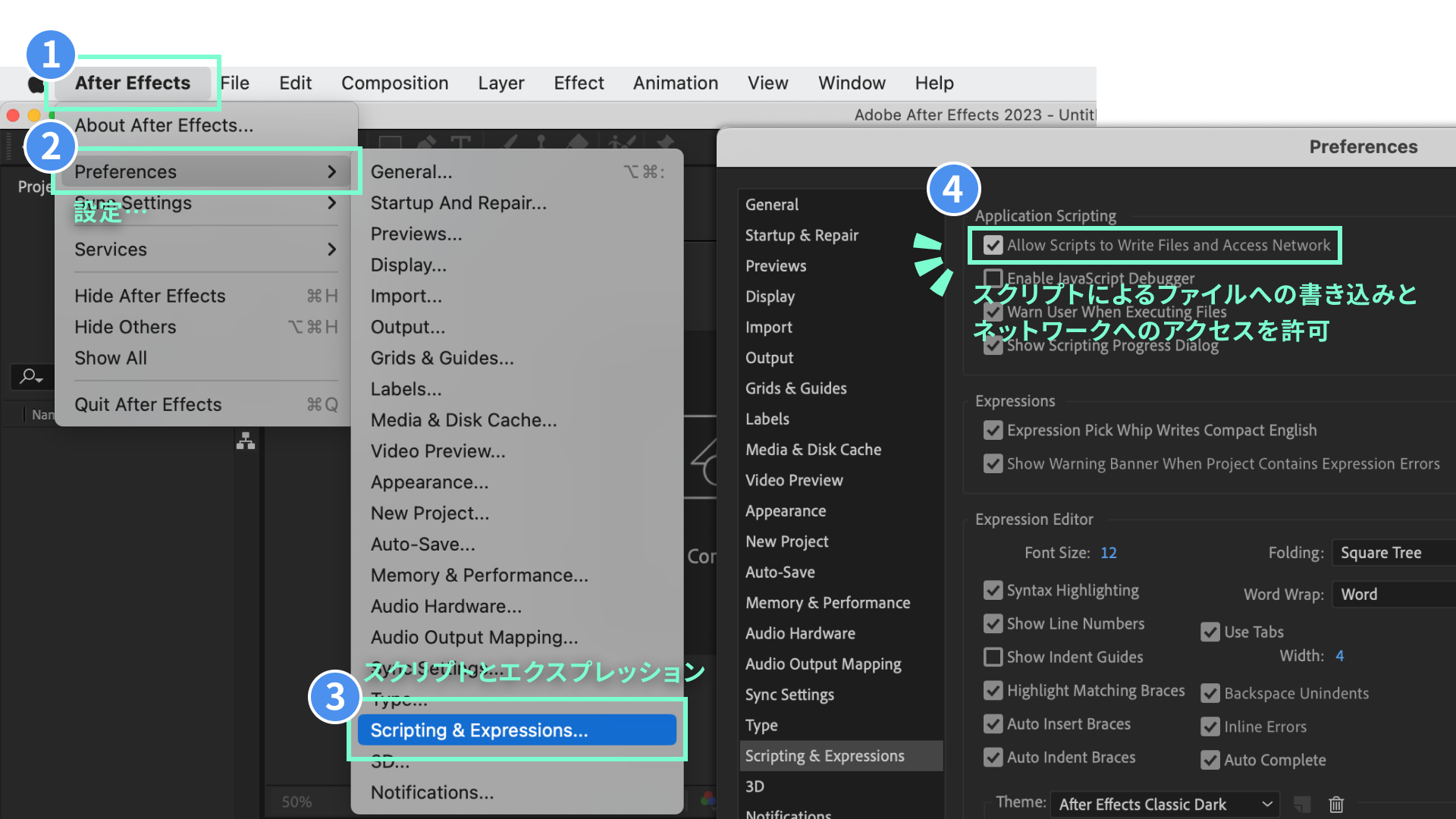
From the menu, open After Effects, then Settings, then Scripting & Expressions. Enable “Allow Scripts to Write Files and Access Network”.
After Effects screen
4. Export
4-1. Export with the installed Bodymovin plugin.
Choose Window, then Extensions, then Bodymovin.
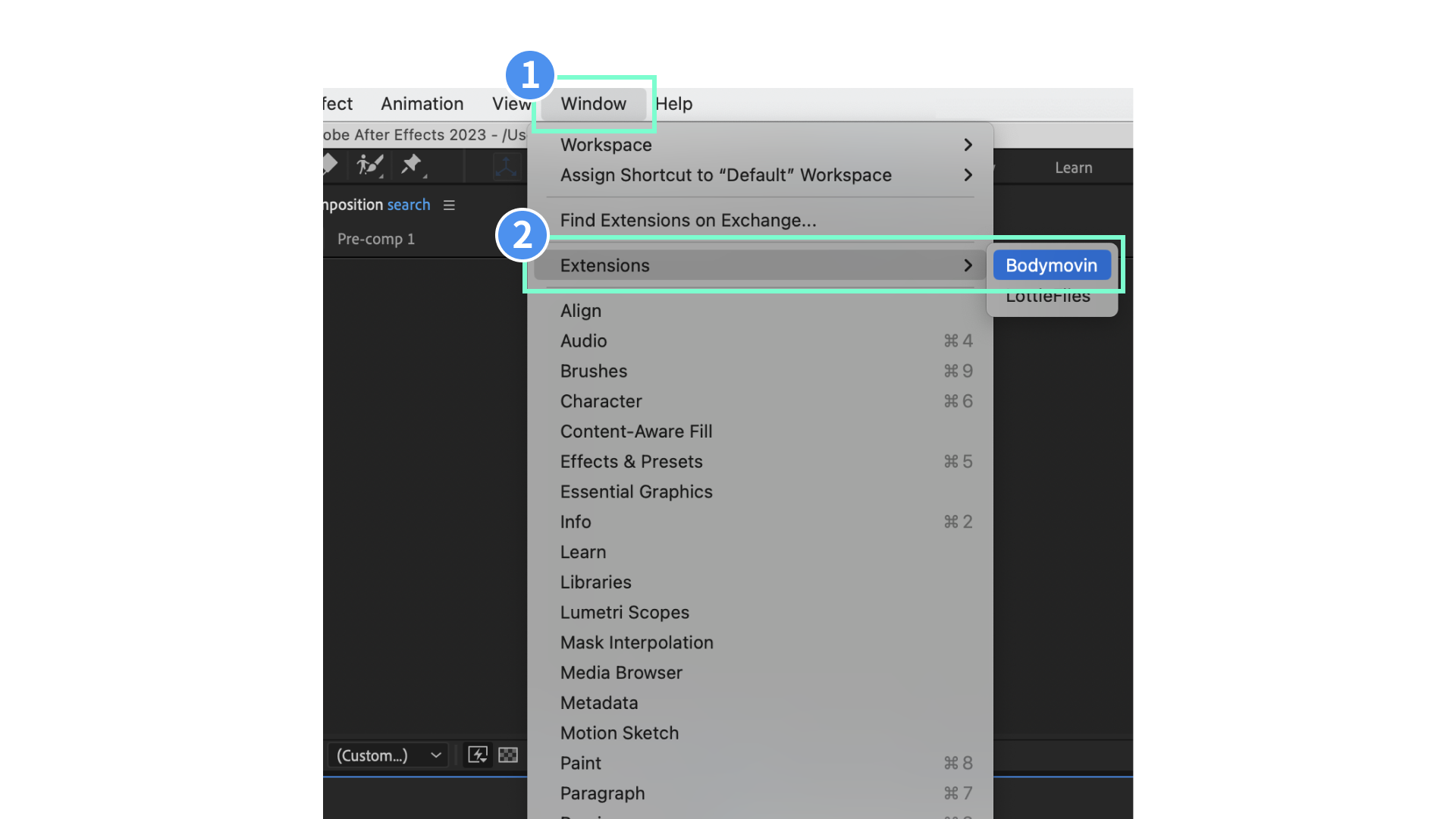
4-2. The Bodymovin panel opens.
-
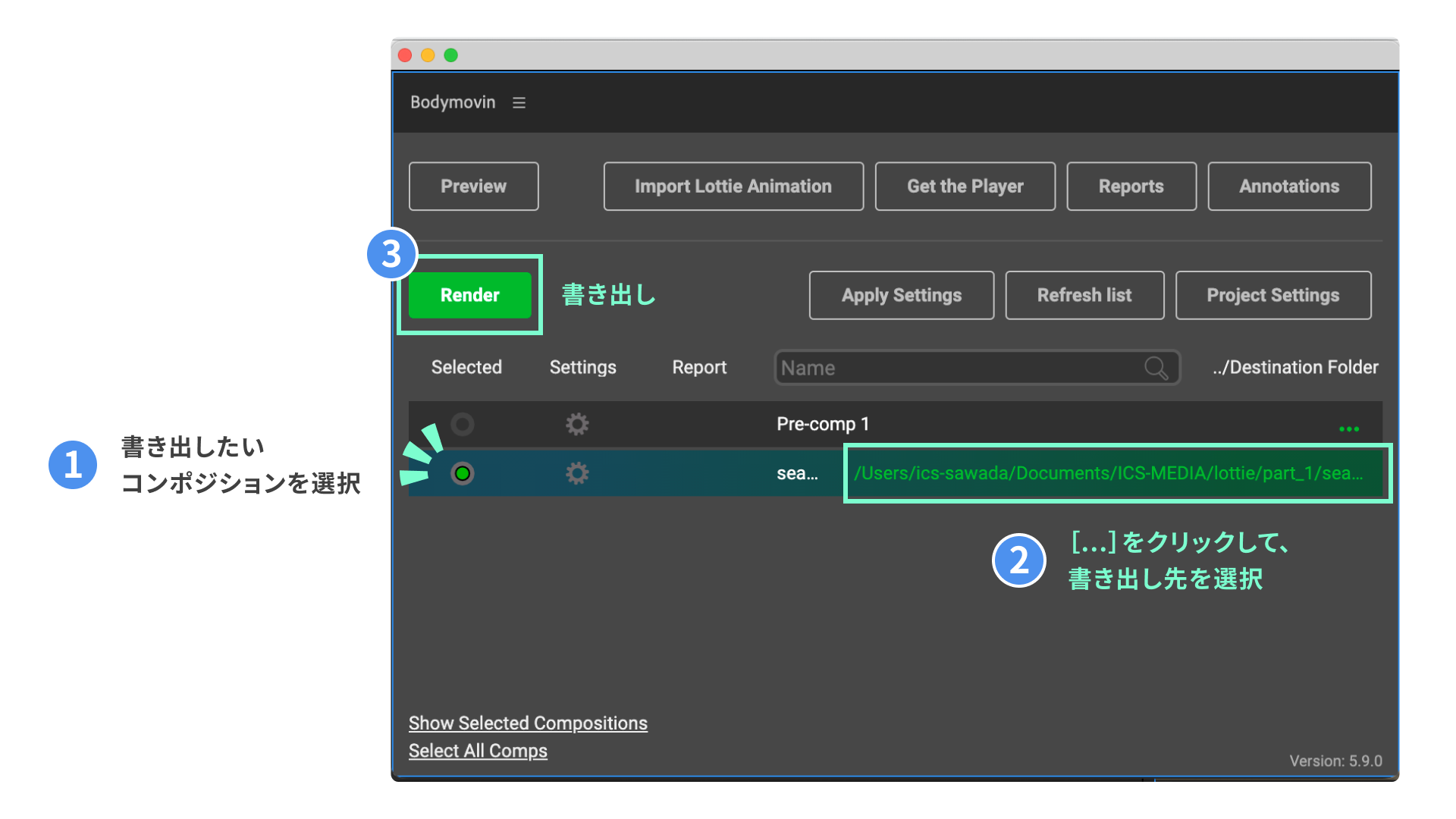
Click the circle in the Selected column to activate it.
-
Click the … button in the …/Destination Folder column and choose the export destination.
-
Click Render to complete the export.
5. Preview by exporting a demo HTML file with Bodymovin
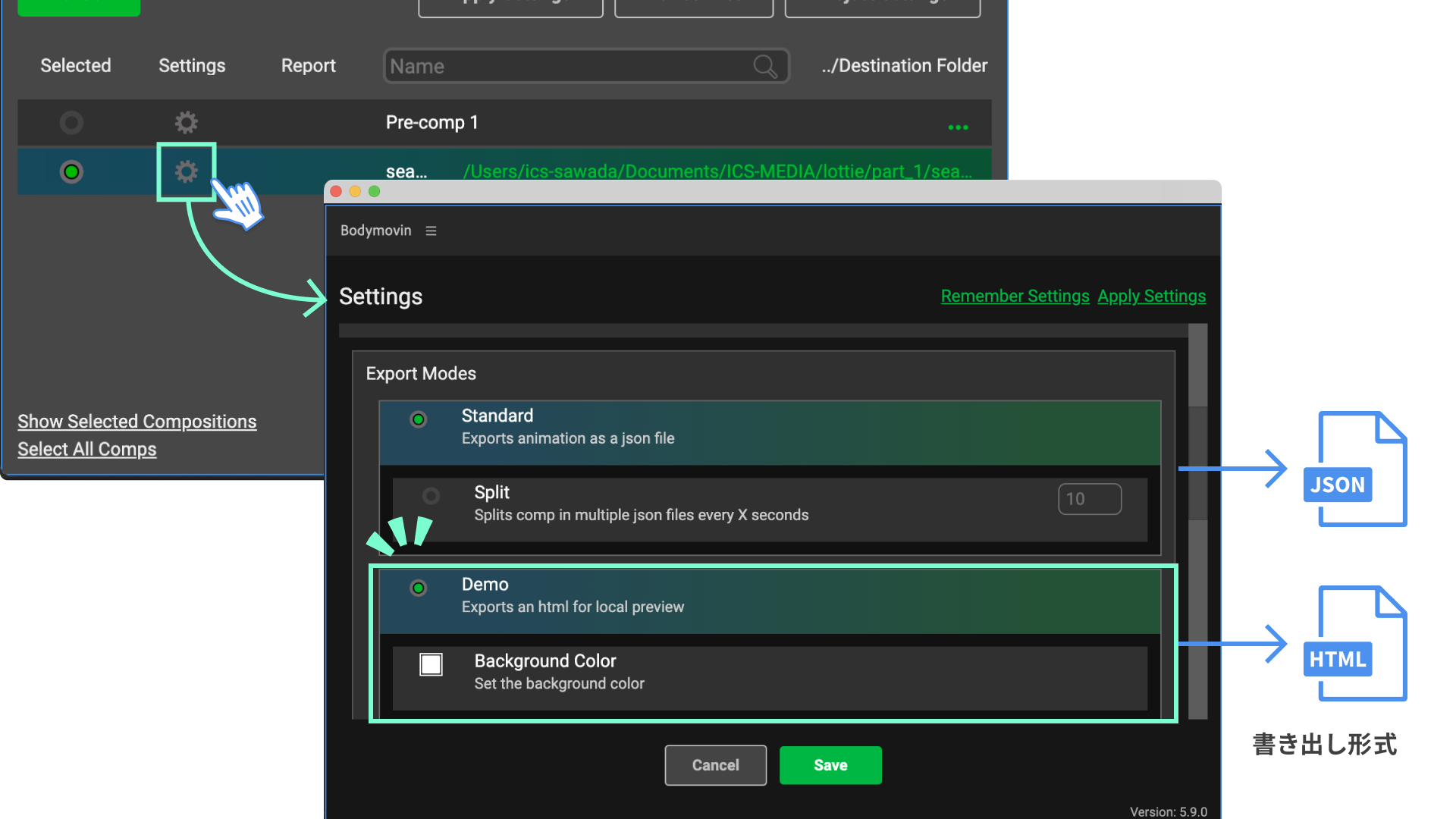
If you enable Settings, then Export Modes, then Demo before exporting, Bodymovin exports an HTML file with the Lottie animation embedded.
The exported HTML file is convenient because it can be shared as a local file, but it is only for previewing. Unlike JSON or dotLottie files, it cannot be incorporated directly into an implementation.
After Effects | Bodymovin panel
Exported demo file:
Exporting with LottieFiles
Another way to export and preview the animation is to use LottieFiles. LottieFiles is covered in the previous article, Creating Lottie animations with Figma, so reviewing that article first is recommended.
1. Install the LottieFiles for After Effects extension
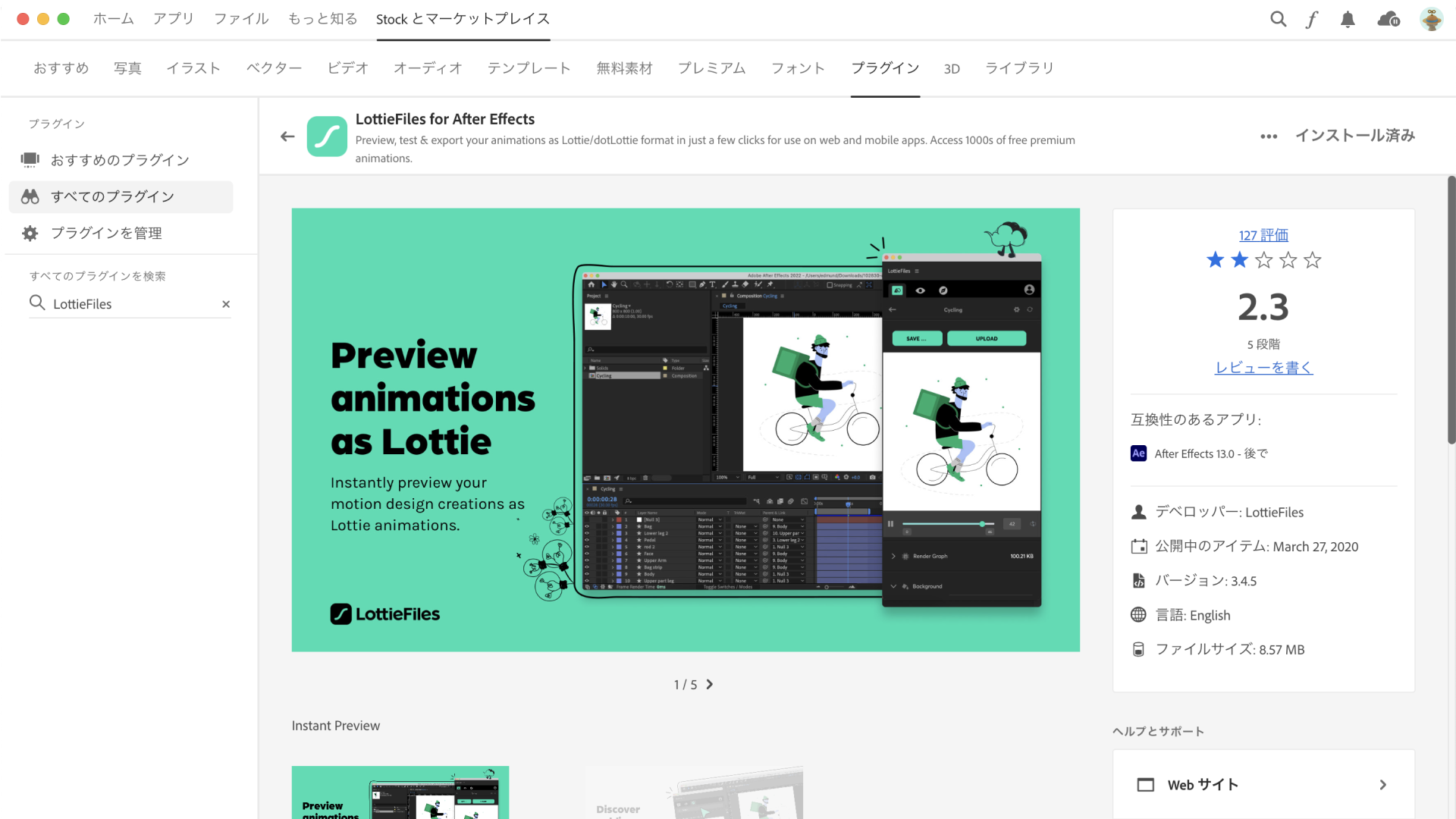
Search for LottieFiles for After Effects in Adobe Creative Cloud plugins and install it.
The plugin can also be installed from the LottieFiles page.
Adobe Creative Cloud | LottieFiles for After Effects plugin
2. Export
- Open the LottieFiles plugin panel.
To export from After Effects with LottieFiles, choose Window, then Extensions, then LottieFiles. The LottieFiles plugin panel opens.
You will be asked to log in. Click Login via browser and log in from your browser. If you do not have an account, register for a LottieFiles account first.
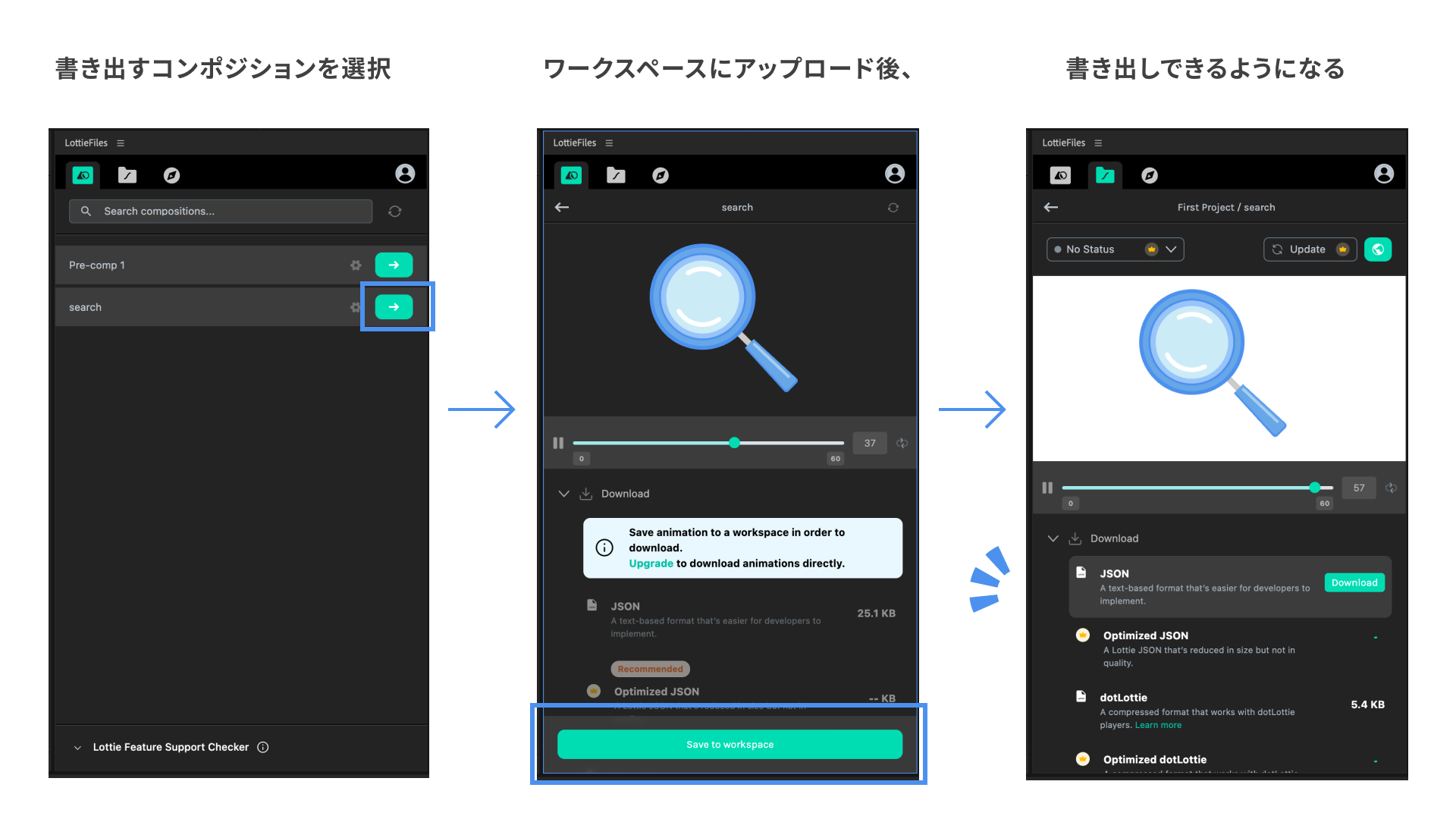
- Upload to the workspace and export.
Select the composition you want to export and click Save to workspace. It will be uploaded to your LottieFiles workspace as a private file. After uploading, you can download it with the .json or .lottie extension, or preview it in the LottieFiles service.
When files do not display correctly
Illustrator to After Effects: gradients
If you create the original vector illustration with gradients in Illustrator and import it into After Effects, the gradients disappear. Unfortunately, Adobe products do not optimize this automatically. Possible solutions are to redefine the gradients in After Effects or use a paid transfer plugin.
When Illustrator data includes gradients, conversion to After Effects shape layers may create unnecessary compound paths. Fills may also be applied outside the paths. Delete any unnecessary paths that are created.
Something looks wrong in the browser
Lottie may not display correctly when layer names, property names, or similar values are in Japanese. Possible solutions include renaming layers in English or launching After Effects in English.
For other problems, the official troubleshooting guide may be helpful.
Conclusion
This article introduced how to create Lottie animations with After Effects, export them, and preview the result.
After Effects can feel difficult because it has so many features. However, because the properties supported by Lottie are limited, it is possible to create animations without using overly complicated techniques.
The next implementation-focused article will introduce simple ways to display Lottie in the browser. It will also cover how to control animations in response to basic events.
References
- Lottieを使ったアニメーションの実装 - デザイナーが気をつけた4つのポイント
- Lottieでグラデーションが白黒になってしまった時の小技
- 【2023最新】After Effectsの英語版⇔日本語版を簡単に切り替える方法【AE】
Series
This article was originally published 3 years ago, and was maintained June 2026.