Part 3 of this introduction to GSAP introduces its powerful plugins.
Scroll control
To control animations in sync with scrolling, use the GSAP plugin ScrollTrigger. ScrollTrigger is one of GSAP’s flagship features and is frequently used on creative websites.
In the following sample, try scrolling downward. As the paragraphs enter the viewport, they appear in a flowing sequence.
With ScrollTrigger, you can easily create effects such as playing an animation when an element enters the viewport.
For simple viewport-entry handling, you might use the Intersection Observer API.
ScrollTrigger supports more complex control.
What ScrollTrigger can do:
- Specify trigger timing
- Specify retriggering rules (for example, whether it should play again after it has already played)
- Specify whether elements should be pinned during scrolling
- Link animation progress to scroll position (scrubbing)
How to use ScrollTrigger
A simple implementation example is as follows.
If you load it with a script tag, import the plugin from a CDN.
<script src="https://cdn.jsdelivr.net/npm/gsap@3.15.0/dist/ScrollTrigger.min.js"></script>
If you use npm, please refer to GreenSock | Docs | Installation.
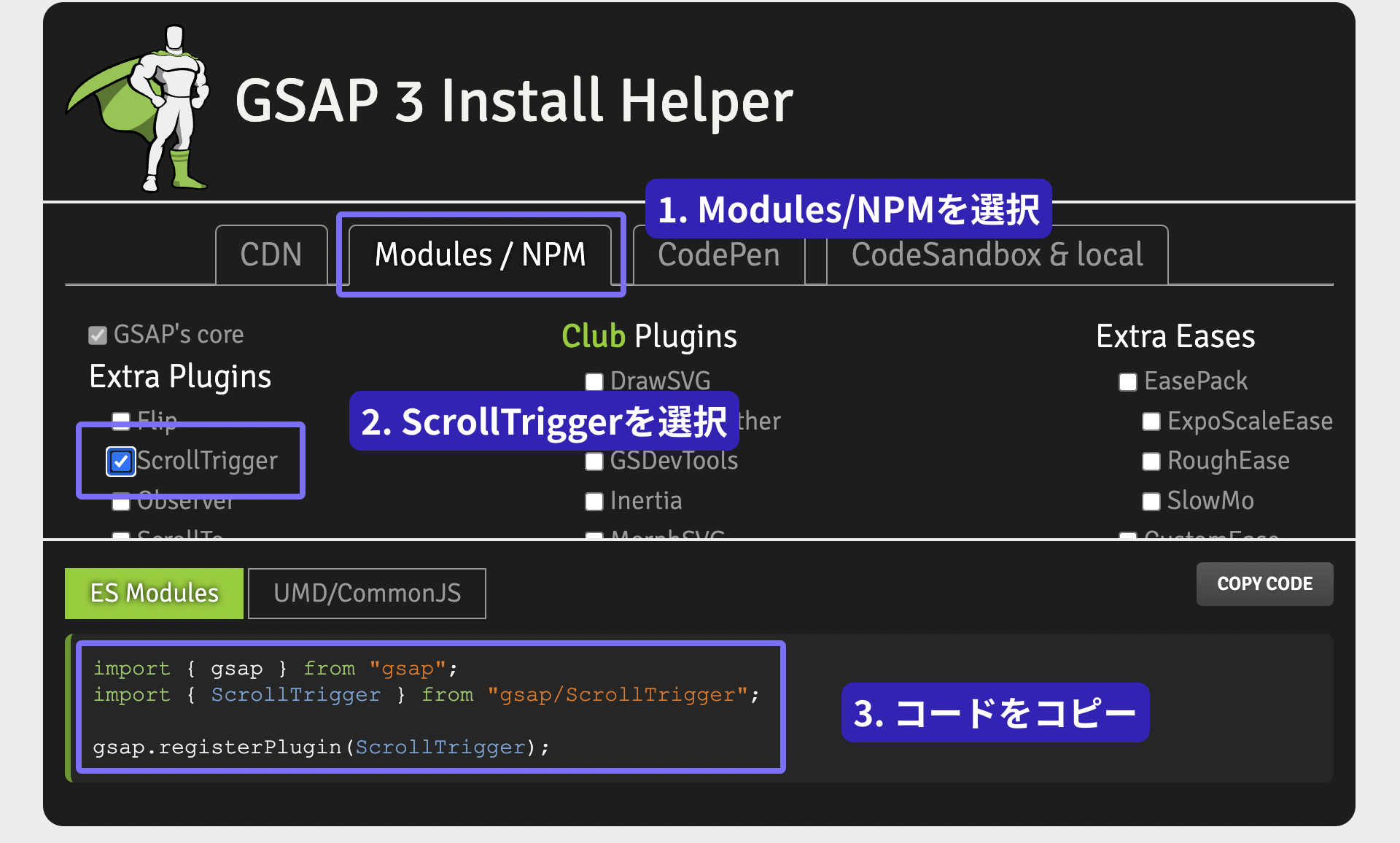
In JavaScript, register the plugin with the gsap.registerPlugin() method. Plugin registration only needs to happen once when JavaScript runs, so avoid calling gsap.registerPlugin() repeatedly.
// register the plugin
gsap.registerPlugin(ScrollTrigger);
Where you want to use it, specify the scrollTrigger property.
// get the elements to animate
gsap.utils.toArray("section").forEach((el) => {
  gsap.from(el, {
    x: 128,
    opacity: 0,
    duration: 1.5,
    ease: "power4.out",
    // ScrollTrigger settings
    scrollTrigger: {
      trigger: el, // target
    },
  });
});
The result is as follows (the effect is simpler than the demo above and the code is shorter).
For a detailed explanation of ScrollTrigger, please refer to our article トレンドウェブサイトから学べ! JavaScriptで作る本格スクロール演出.
Note: How is it different from CSS Scroll-driven Animations?
Chrome, Edge, and Safari support a feature called “Scroll-driven Animations.”
Scroll-driven Animations lets you create scroll animations with CSS alone, without using a JavaScript library. ScrollTrigger differs in that it lets you combine and control features such as pinning, snapping, and callbacks with JavaScript.
Move along a curve
For tweens that follow a curve, use the GSAP plugin MotionPathPlugin.
It allows an element to move along an SVG path. A key highlight is that the dot rotates as it follows the path.
// register the plugin
gsap.registerPlugin(MotionPathPlugin);

gsap.to("#rect", {
  duration: 3,
  ease: "power4.inOut",
  // specify the path
  motionPath: {
    // move along the SVG path
    path: "#path",
    align: "#path",
    autoRotate: true,
    alignOrigin: [0.5, 0.5],
  },
});
You can also create curved tweens for arbitrary parameters. Personally, I use MotionPathPlugin more for this purpose than for the SVG-path use case introduced above. The key point is that you can apply curves not only to XY coordinates but also to various other properties.
// register the plugin
gsap.registerPlugin(MotionPathPlugin);
// (excerpt)
// move them all together
const list = gsap.utils.toArray(".rect");
list.forEach((rect, index) => {
  gsap.fromTo(
    rect,
    {
      x: "-40vw",
      scale: 0.0,
    },
    {
      duration: 2 + Math.random() * 3,
      repeat: -1,
      ease: "power1.inOut",
      x: "40vw",
      motionPath: [
        { y: (Math.random() - 0.5) * 20 + "vh", scale: 1 },
        { y: (Math.random() - 0.5) * 50 + "vh", scale: 0 },
      ],
      delay: Math.random(),
    },
  );
});
How to install MotionPathPlugin
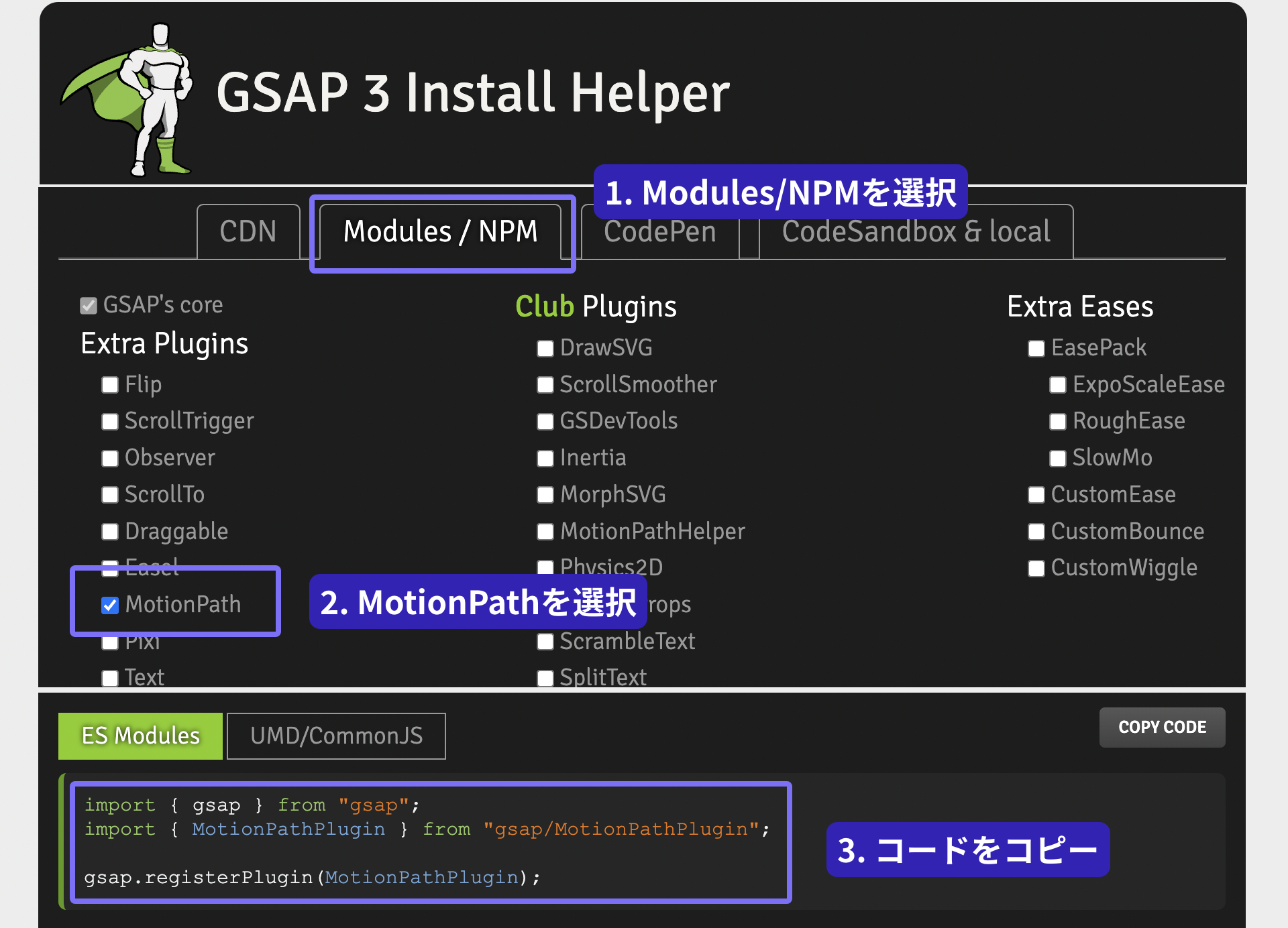
MotionPath requires plugin registration. If you use a CDN, write it as follows.
<script src="https://cdn.jsdelivr.net/npm/gsap@3.15.0/dist/MotionPathPlugin.min.js"></script>
If you use npm, it is included in GSAP itself, but pay attention to the ES Modules import statement. It is helpful to refer to Install Helper.
FLIP plugin
FLIP stands for First, Last, Invert, and Play. It is a technique for smoothly connecting the states before and after a layout change. GSAP’s Flip plugin records positions and dimensions with Flip.getState(). After changing the DOM or CSS, call Flip.from() to animate from the recorded state to the current one.
For details, please refer to the article JavaScriptで実現するFLIPアニメーションの原理と基礎.
Text animation
GSAP also provides plugins designed specifically for text animation. Here are three of them.
Some of these plugins previously required a paid license, but they are now available for free with GSAP.
Reveal text one character at a time with TextPlugin
TextPlugin gradually replaces the text in a DOM element. When applied to an empty element, it can display text as if it were being typed one character at a time.
gsap.registerPlugin(TextPlugin);

gsap.to(".demo", {
  duration: 1,
  text: "Text appears one character at a time",
  ease: "none",
});
Animate by character and line with SplitText
SplitText breaks text into characters, words, or lines. In the following example, each character is masked, and yPercent and stagger reveal the characters from left to right.
gsap.registerPlugin(SplitText);

const split = SplitText.create(".demo", {
  mask: "chars",
});

gsap.from(split.chars, {
  yPercent: 100,
  duration: 0.75,
  ease: "power4.out",
  stagger: 0.04,
});
For line-based animation, specify type: "lines" and mask: "lines", and animate split.lines.
const split = SplitText.create(".demo", {
  type: "lines",
  mask: "lines",
});

gsap.from(split.lines, {
  yPercent: 100,
  duration: 1,
  ease: "power4.out",
  stagger: 0.2,
});
Combining SplitText with ScrollTrigger
SplitText can also be combined with ScrollTrigger. In the following example, each block animates by character when it enters the viewport.
Scramble text with ScrambleTextPlugin
ScrambleTextPlugin gradually reveals the intended text from random characters. With scrambleText: "{original}", the animation resolves to the element’s original text.
gsap.registerPlugin(ScrambleTextPlugin);

gsap.to(".demo", {
  duration: 1,
  scrambleText: "{original}",
});
Conclusion
GSAP plugins are compelling because they make it possible to create eye-catching effects with only a small amount of code. I also find it interesting that using plugins can inspire new ideas for animation.
Next, Part 4 covers advanced tween control, utility functions, and more.