
The JavaScript library GSAP is useful for creating motion on websites. GSAP offers advanced features, strong runtime performance, and broad compatibility.
Creating motion by interpolating between a start point and an end point is called “tweening” (from the word between). There are many JS libraries that provide tweening functionality, but GSAP is especially well regarded and stands out for the sheer number of features it offers. In our article 現場で使えるアニメーション系JSライブラリまとめ - GSAP, Anime.js, Motion, Tween.js, WebAnimationなど, we also confirmed that it performs better than similar libraries.
Having used GSAP for 18 years, dating back to the old TweenMax era, I’ll introduce everything from the minimum essentials you should know to practical techniques that are useful in production.
Official GSAP website
This introduction to GSAP is explained over two articles. In this first part, we focus mainly on the basics.
Where GSAP shines
When web standards like CSS Transitions are also an option, what advantages does GSAP offer? Here’s how I think about it.
- Compared with CSS Transitions/Animations and the Web Animations API, GSAP gives you far more control.
- GSAP is useful for managing sequences of motion.
- GSAP can be used not only with HTML DOM elements, but also in WebGL and Canvas implementations. (※)
※ In WebGL/Canvas, you use plain JavaScript objects, so CSS Transitions and similar techniques cannot be used.
Conversely, if a website can be built with CSS Transitions alone, there is no need to use GSAP. Likewise, if motion is already built into CSS frameworks or design systems such as Bootstrap or Material Design, GSAP is probably unnecessary.
GSAP becomes useful in cases where you want to be meticulous about animation direction, aim for a website that feels satisfying to interact with, or create movement that breaks out of fixed patterns.
How to install GSAP
Getting started with GSAP is easy. I’ll show two approaches: using a script tag and using a package manager.
Using a script tag
If you want to use it quickly via a CDN, this is the simplest approach. Load it with a script tag from the CDN.
<script src="https://cdn.jsdelivr.net/npm/gsap@3.13.0/dist/gsap.min.js"></script>
Once loaded, the global window object gets a gsap object, so you can use gsap anywhere in your JavaScript. Via CDN, the file is about 50 KB when GZipped, so the footprint is fairly compact.
Importing as ESM from a CDN
If you want to load it as ES Modules from a CDN, write it like this (see ES Modules入門 - JavaScriptのモジュールを使う方法).
<script type="importmap">
  {
    "imports": {
      "gsap": "https://cdn.jsdelivr.net/npm/gsap@3.13.0/index.js"
    }
  }
</script>

<script type="module">
import { gsap } from "gsap";

// ...write your implementation here
</script>
Installing with NPM
To use it in a Node.js development environment, install the gsap package with the npm install command.
npm install gsap
The gsap package also includes TypeScript definition files, so you do not need to install @types. If you use ES Modules, write the code like this.
import {gsap} from "gsap";

gsap.to(someElement, { x:100 }); // placeholder code
I’ve prepared sample setups for using GSAP with webpack, so please refer to the following. There are no special caveats to watch out for.
The official page GreenSock | Docs | Installation provides a detailed explanation with an install helper and videos.
Basic GSAP usage
The minimum code you need looks like this.
// Pass the target as the first argument and the properties/values to change as the second argument
gsap.to(".rect", { x: 200, duration: 2 });
Specify the target selector or object (arrays are also allowed) as the first argument. In the second argument, pass an object containing the properties you want to change and their values. Use duration to specify time in seconds.
For example, if you want to change the background color over 1 second, write it like this.
// Change to blue over 1 second
gsap.to(".target", { backgroundColor: "#0000FF", duration: 1 });
As in CSS, values can be specified as strings.
Configuration values
You can customize tween behavior by including configuration values in the second argument. The following code includes delay for delayed start and repeat for repeating.
// Start playback after a 2-second delay
gsap.to(".target", { color: "#0000FF", duration: 1, delay: 2 });

// Repeat twice
gsap.to(".target", { color: "#0000FF", duration: 1, repeat: 2 });

// Include a delay between repeats
gsap.to(".target", {
  color: "#0000FF",
  duration: 1,
  repeat: 2,
  repeatDelay: 1,
});
The most common properties are summarized in the table below. If you remember the properties marked with “★” in the Usage column, that’s enough to get started. The article explains the major ones in more detail later.
| Property | Description | Unit | Default value | Usage |
|---|---|---|---|---|
duration |
Duration | Number (seconds) | 1.0 |
★ |
ease |
Easing | String or function | power2.inOut |
★ |
delay |
Delay time | Number (seconds) | 0 |
- |
repeat |
Number of repeats | Number | 0 |
- |
repeatDelay |
Delay before repeating | Number (seconds) | 0 |
- |
yoyo |
Whether repeats should reverse direction | Boolean | false |
- |
paused |
Whether to start in a paused state | Boolean | false |
- |
overwrite |
Whether to overwrite existing tweens | Boolean or "auto" |
false |
- |
Controlling repeats
If you want motion to repeat, use the repeat property. If you set a positive integer, it will repeat that many times.
To repeat infinitely, specify repeat: -1. If you want a waiting period between repetitions, set repeatDelay.
gsap.to(".target", {
  x: 200,
  duration: 2,
  repeat: -1, // Repeat infinitely
  repeatDelay: 0.5, // 0.5 second pause between repeats
});
If you set yoyo, the tween repeats by going there and back, like a toy yo-yo.
gsap.to(".target", {
  x: 200,
  duration: 2,
  repeat: -1, // Repeat infinitely
  repeatDelay: 0.5, // 0.5 second pause between repeats
  yoyo: true, // Reverse direction
});
Specifying transforms
With GSAP, you can write CSS transform values intuitively. Use x for horizontal movement. It is shorthand for transform: translateX(...). Similarly, y is shorthand for transform: translateY(...).
gsap.to(".target", {
  x: 100, // Horizontal
  y: 100, // Vertical
  duration: 1,
});
In CSS, rotation is written as transform: rotate(180deg), but in GSAP you can specify the rotate property directly. If you omit the unit, the value is treated as degrees. If you want to use radians, specify a string with the rad unit.
// One full rotation (degrees)
gsap.to(".target", { rotate: 360, duration: 1 });

// Using radians
gsap.to(".target", { rotate: "2rad", duration: 1 });
Other transform-related properties can be written as follows.
| GSAP | CSS | Description |
|---|---|---|
x: 10 |
transform: translateX(10px) |
Horizontal translation (px) |
y: 10 |
transform: translateY(10px) |
Vertical translation (px) |
rotate: 360 |
transform: rotate(360deg) |
Rotation angle |
scale: 2 |
transform: scale(2, 2) |
Scale (1.0 is original size) |
scaleX: 2 |
transform: scaleX(2) |
Scale only horizontally |
scaleY: 2 |
transform: scaleY(2) |
Scale only vertically |
xPercent: -50 |
transform: translateX(-50%) |
Horizontal translation (relative to the element’s width) |
yPercent: -50 |
transform: translateY(-50%) |
Vertical translation (relative to the element’s height) |
Around 2022, browsers started allowing CSS to specify individual transform properties such as scale and rotate separately as well (もう誤魔化さない! CSS Transform完全入門(2D編)), but GSAP supports older browsers too, so you can use it with confidence.
Column: transform is smoother than using left/top
If you want to move an element horizontally or vertically, using x and y usually produces smoother rendering than using left and top. That’s because CSS transform takes fractional values into account. Depending on the use case, if you’re changing position for visual effect, it’s often better to consider x and y instead of left and top.
What can be tweened
The first argument to gsap.to() can accept not only selectors but various kinds of objects. Selectors behave almost the same as document.querySelectorAll(). If you pass a CSS class selector, all matching elements will tween.
You can also pass an HTMLElement instance, an array, or any arbitrary object.
// Tween all elements that match the selector.
gsap.to(".item", { x: 100, duration: 1 });

// If you pass an array, all items in the array can be animated together.
gsap.to(["#item1", "#item2"], { x: 100, duration: 1 });

// If you pass an HTMLElement directly, that element will be animated.
const element = document.createElement("div");
element.textContent = "Hello";
document.body.append(element);
gsap.to(element, { x: 100, duration: 1 });

// You can also pass an arbitrary object.
const param = { value: 0 };
gsap.to(param, { value: 100, duration: 1 });
Changing opacity
If you want to change CSS opacity, use opacity. You can also use alpha as a shorthand for opacity.
gsap.to(".rect", {
  opacity: 0
})
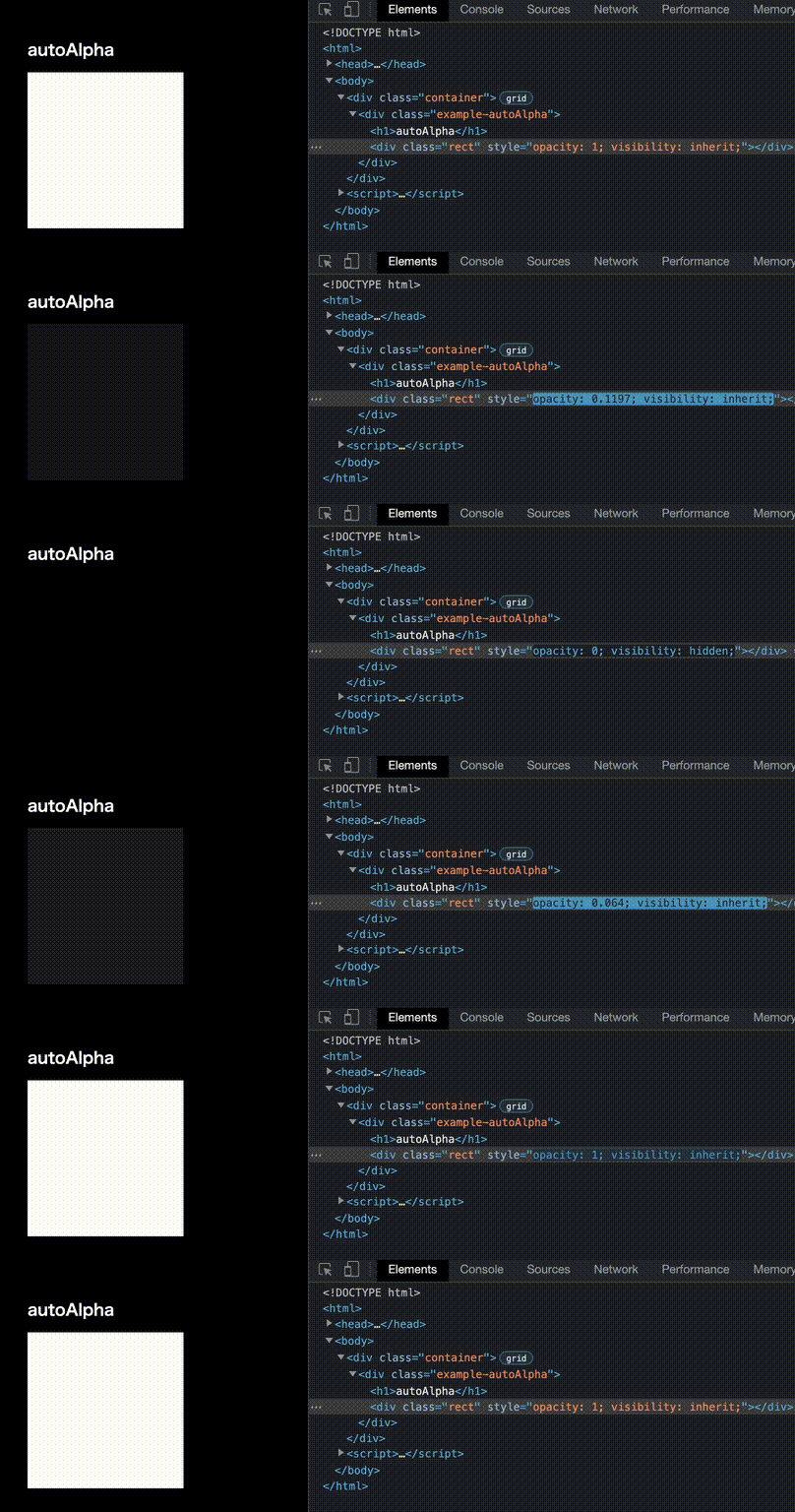
When you use autoAlpha, GSAP automatically sets visibility: hidden when the opacity reaches 0. At opacity: 0, text can still be selected and may still be read by screen readers, so autoAlpha is useful when you want the element to be effectively hidden.
gsap.to(".rect", {
  autoAlpha: 0
})
visibility changes along with opacity.
Specifying easing
Use the ease property to specify easing. Easing can be specified either as a string or as a function.
gsap.to(".target", {x :100, duration: 1, ease : "power4.out"});
If you specify it as a function, you need to import the easing function in the import statement when using ES Modules.
import {gsap, Power4} from "gsap";
gsap.to(".target", {x :100, duration: 1, ease: Power4.out});
The strength of easing is defined in levels such as "power1.out", "power2.out", "power3.out", and "power4.out". If you’re not familiar with the difference between easing types like quad, cubic, quart, and quint, it’s often easier to think in terms of power1 through power4.
| Easing strength | Alias |
|---|---|
linear |
none |
sine |
- |
quad |
power1 |
cubic |
power2 |
quart |
power3 |
quint |
power4, strong |
expo |
- |
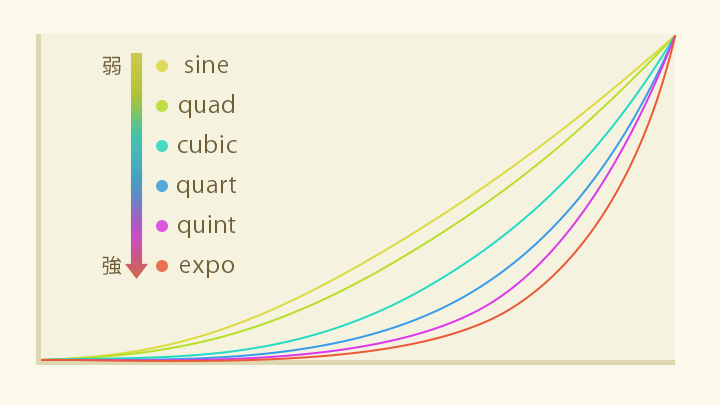
Sine < Quad < Cubic < Quart < Quint < Expo: the farther to the right you go, the stronger the character. For more details on the differences between easings, see CSSイージングのお手本 - ease-out, ease-in, linearの使い分け.
You can choose from the following three patterns for acceleration and deceleration.
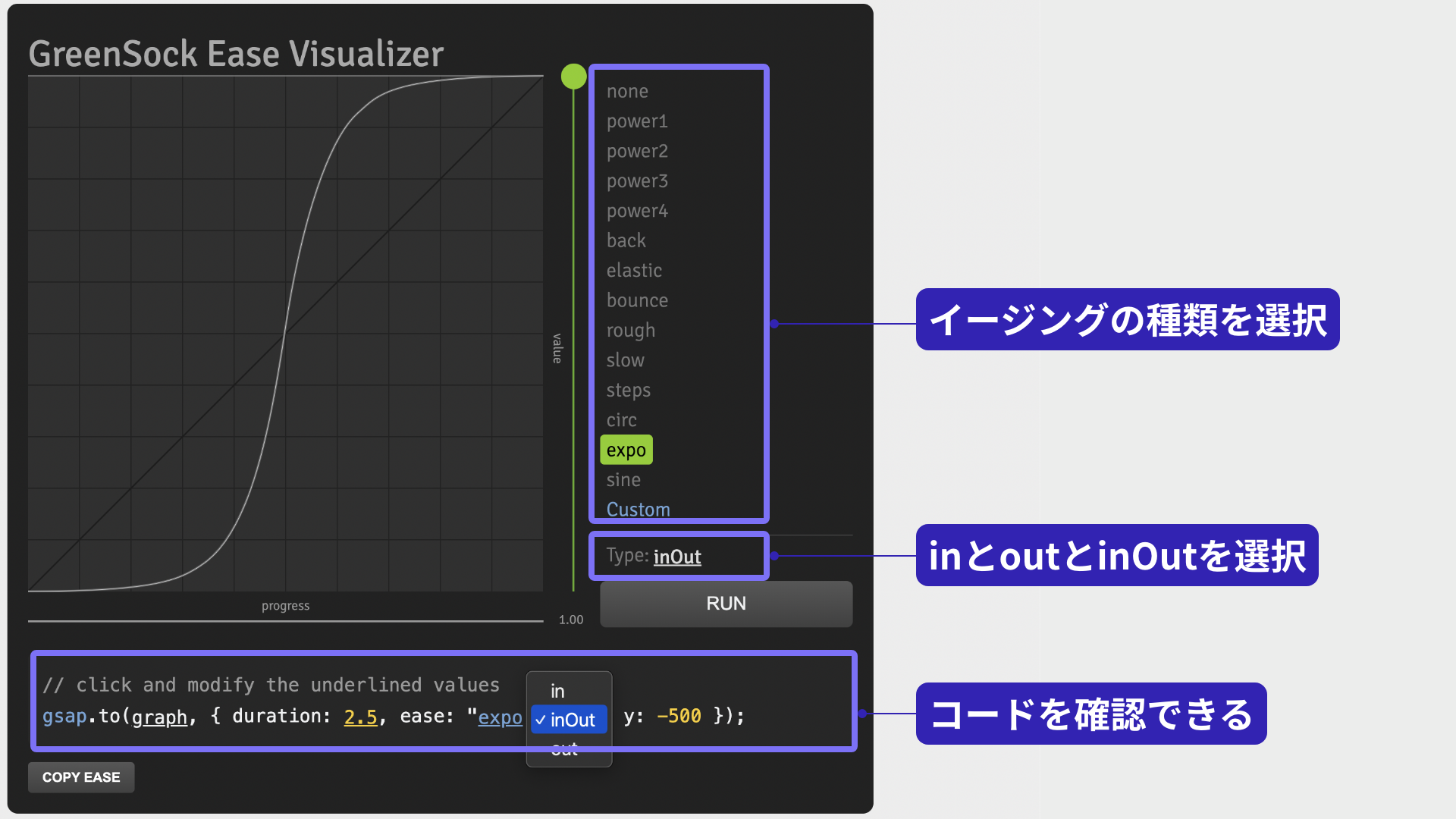
in: starts at the slowest speed, then acceleratesout: starts at the fastest speed, then deceleratesinOut: starts slowly, accelerates, then decelerates at the end
The official page GreenSock | Docs | Eases includes a tool for testing the strength of easing, so it’s worth trying.
Customizing easing
You can customize the intensity of back and elastic. Use parentheses inside the string (or use the function form).
// Overshoots and comes back
gsap.to(graph, { duration: 2.5, ease: "back.out(1.7)", y: -500 });

// Springy motion
gsap.to(graph, { duration: 2.5, ease: "elastic.out(1, 0.5)", y: -500 });
Recommended easing
Personally, I recommend "power4.out". Here are a few common beginner patterns that lead me to say that.
- People are afraid of strong easing and choose weak easing instead, resulting in flat-looking motion.
- One place uses
power1.outwhile another usespower4.out, making the overall feel inconsistent. - People don’t really understand the difference between
expoandcirc, choose something at random, and end up with inconsistent motion.
Instead of ending up with awkward, inconsistent easing, using a stronger easing gives motion clearer contrast and reduces decision time during production. Of course, depending on the size of the object being tweened, the distance, and the duration, I do adjust the easing type when needed.
Different ways to call tweens
So far, I’ve mainly explained gsap.to(). to() specifies the state after the tween ends, but GSAP has several other methods as well.
from()
gsap.from(".target", { x: 100, duration: 1 });
The gsap.from() method animates from the specified start state to the current state. In static HTML websites, you often code to match the design comp exactly, and gsap.from() is useful when you want to specify how much to offset the finished page for the effect.
fromTo()
gsap.fromTo(".target", { x: 100 }, { x: 200, duration: 1 });
The gsap.fromTo() method lets you specify both the start and end states. It requires more arguments, but explicitly setting both ends makes behavior more stable. It’s often used when building with timelines or ScrollTrigger later on.
set()
gsap.set(".target", { x:100 });
The gsap.set() method sets values instantly. Use it when you do not need tweening and want to apply CSS or property values immediately.
Staggered motion
With the stagger property, you can add delays across multiple targets so they appear one after another. “Stagger” means to arrange with offsets.
// Reveal with stagger
gsap.from(".rect", {
  y: 10,
  autoAlpha: 0,
  duration: 1,
  ease: "power4.out",
  stagger: 0.02, // Appear every 0.02 seconds
});
Using stagger together with position and opacity is useful for directing the viewer’s eye, as in the following example.
It’s also useful when moving a large number of objects. If you specify the stagger property as an object, you can configure it in more detail.
gsap.to(".rect", {
  y: "100vh",
  duration: 2,
  ease: "bounce.out",
  stagger: {
    each: 0.01, // Interval between items (seconds)
    from: "random" // Start in random order
  },
});
Using stagger on a grid
If you specify stagger: { grid: "auto" }, GSAP can determine the starting point based on the elements’ layout positions.
// Apply in a grid pattern
gsap.from(".rect", {
  scale: 0,
  duration: 1,
  ease: "power4.out",
  stagger: {
    each: 0.05,
    from: "center", // From the center
    grid: "auto", // Start based on a grid
    ease: "power4.out", // Easing applied across the offsets
  },
});
Overwrite
When you start a new tween, if that object is already being tweened, GSAP provides an overwrite feature that can replace the existing tween.
Let’s think about button hover behavior. Suppose the mouseover tween is still playing when mouseout fires and a new tween starts. You might expect the latter tween to take precedence and play naturally. However, depending on how the tweens are written, the display can become unnatural.
In the next demo, you can compare the difference with and without overwrite. If you rapidly move the pointer in and out over the button, the button at the top of the screen starts to look wrong. If the mouseout tween finishes before the mouseover tween, the remaining part of the original mouseover tween gets applied afterward.
To fix this, enable overwrite.
gsap.to(element, {
  scale: 1.2,
  duration: 0.5,
  overwrite: true, // Enable overwrite
});
- If set to
true, all tweens of the same target are stopped immediately, regardless of which properties they affect. - If set to
auto, when the tween renders for the first time, GSAP detects conflicts with active tweens (same target, same properties) and stops only the conflicting portions of the other tweens. Non-overlapping portions remain. - If set to
false, no overwriting occurs.
The default is false, so if you think motions may conflict, set it to "auto" or true.
Overwrite is implemented in many tween libraries and is one of their important features.
Relative values
With gsap.to(), you can specify values relative to the current value using strings such as "+=number" and "-=number".
// Add 30 to the current value
gsap.to(".example-scale .rect", {
  rotate: "+=30",
  duration: 1,
});

// Reduce the hue by 45 degrees from the current value
gsap.to(".example-color .rect", {
  backgroundColor: "hsl(-=45, 50%, 50%)",
  duration: 0.3,
});
Personally, I rarely use relative values because they can make behavior less stable, but it’s good to keep the feature in the back of your mind.
Tween callbacks
You can observe tween timing with callback functions. Here’s how to specify behavior for when a tween starts, updates, and completes.
// Specify callbacks
gsap.to(".rect", {
  x: 200,
  duration: 2,
  onStart: () => {
    console.log("start");
  },
  onUpdate: () => {
    console.log("update");
  },
  onComplete: () => {
    console.log("complete");
  },
});
※ This demo outputs to the console, so please check the Console panel in your browser’s developer tools.
There are also events for when a tween is interrupted (onInterrupt) or repeated (onRepeat). For details, see the documentation.
Tweening objects
GSAP can tween more than DOM elements. You can tween arbitrary objects as well. For example, let’s think about motion that moves around a circle. If the value you want to manage is the angle of rotation, create an object that contains radian.
const params = { radian: 0 };
To tween the params object, use the onUpdate callback mentioned earlier. Inside onUpdate, calculate the XY coordinates from the value of radian. By applying those XY coordinates to another HTML element, you can place it on the circle.
const params = { radian: 0 };

gsap.to(params, {
  radian: Math.PI * 2,
  duration: 2,
  ease: "power4.inOut",
  onUpdate: () => {
    const { radian } = params;
    // Calculate Cartesian coordinates
    const x = Math.cos(radian) * 100;
    const y = Math.sin(radian) * 100;
    gsap.set(".circle", { x, y }); // Apply the coordinates
  },
  repeat: -1,
});
In my own projects, I often tween an intermediate object when controlling Three.js or PixiJS. It’s especially useful for managing 3D camera coordinates.
GSAP license (100% free)
GSAP is 100% free, including commercial use. In the past, some use cases required a paid license, but since April 30, 2025, even the bonus plugins are available for free. For details, see the following official pages.
Conclusion
In this first article, I focused mainly on GSAP’s basic features.
In Part 2, centered on timelines—one of GSAP’s signature features—I will cover the following topics.
- Timeline features
- ScrollTrigger plugin
- MotionPath plugin
quickSetter- Utility functions