
When writing JavaScript, it is very common to process each element in an array. In real-world development, the following patterns show up often:
- Non-mutating operations are increasingly preferred, but the original array is still being mutated
- Code that could be written with array methods such as
filter()orevery()is instead written withforEach()orfor ... of, making it more verbose Array.from()is used even though it has no practical effect
Code like this may still work as intended. However, verbose code reduces readability and can lead to unexpected bugs.
In this article, we will look at how to replace common verbose array-handling patterns with simpler, more concise code.
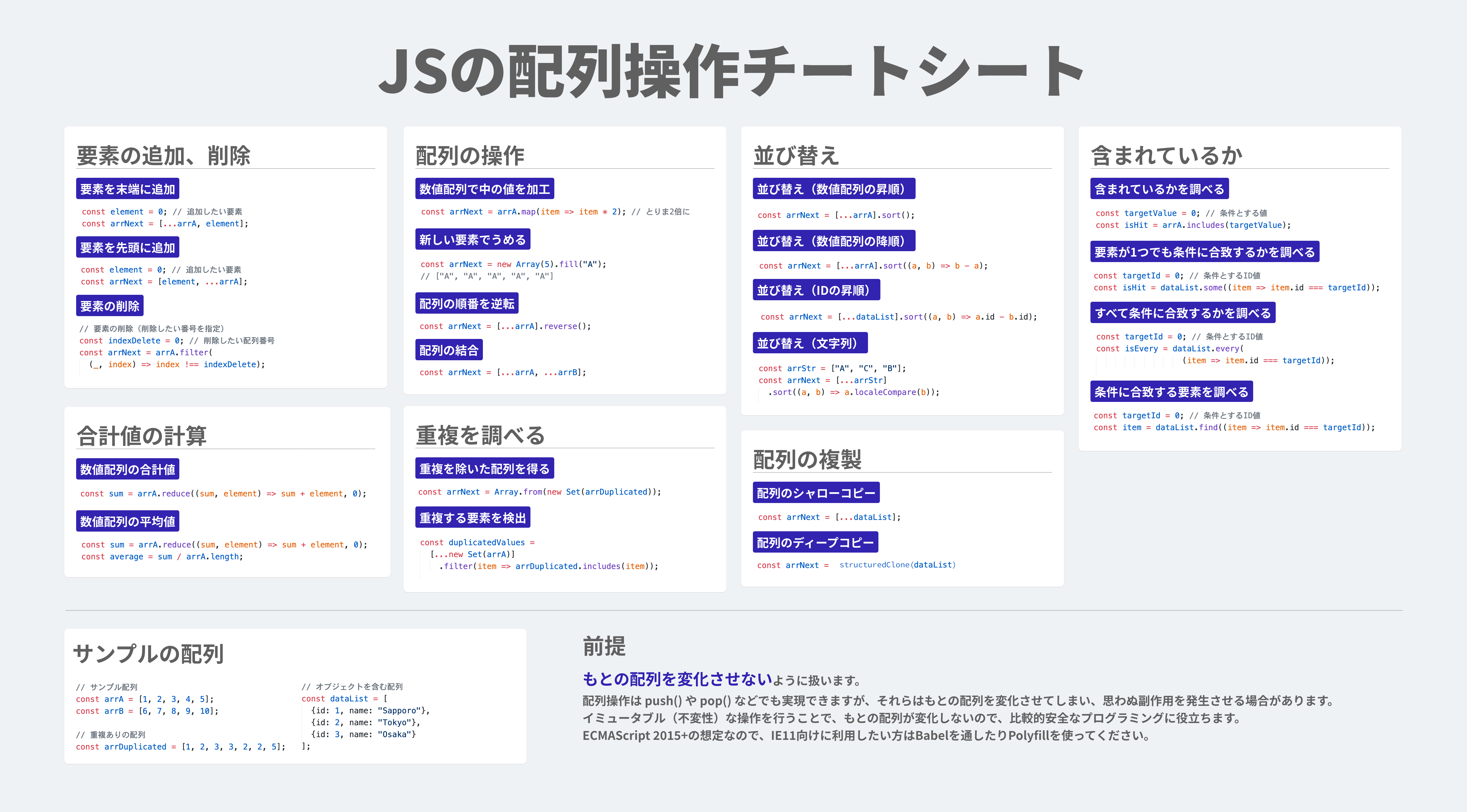
We have also prepared a cheat sheet covering the JavaScript array techniques introduced in this article, so download it if you would like a handy reference.
Contents
- Adding and removing elements
- Transforming arrays, filling, reversing, and concatenating
- Sorting arrays
- Extracting only elements that match a condition
- Checking whether an array contains a value
- Detecting duplicates
- Cloning arrays
- Checking whether at least one element matches a condition
- Flattening multidimensional (jagged) arrays
- Callback parameters for Object.entries()
- Don’t wrap document.querySelectorAll() in Array.from() unnecessarily
Adding and removing elements
JavaScript provides the following methods for adding and removing array elements. These methods mutate the original array.
push(): adds an element to the end of an arraypop(): removes the last element of an arrayunshift(): adds an element to the beginning of an arrayshift(): removes the first element of an array
In frontend development, it is often preferable to avoid mutating the original array and instead receive the result as a new array. This article follows that style.
Adding an element (to the beginning)
To perform the operation without mutation, write it like this. This uses the spread syntax, ..., which expands the original array into individual elements.
Use the following code when you want to add an element to the beginning of an array instead of using unshift().
const list1 = [1, 2, 3];

// Add an element to the beginning
const element = 0; // Element to add
const list2 = [element, ...list1]; // Add to the beginning

console.log(list2); // [0, 1, 2, 3]
Adding an element (to the end)
When you want to add an element to the end of an array instead of using push(), write it like this. Place the new element after the spread version of the original array.
const list1 = [1, 2, 3];

// Add an element to the end
const element = 4; // Element to add
const list2 = [...list1, element]; // Add to the end

console.log(list2); // [1, 2, 3, 4]
Removing elements
To remove elements, write code like the following. The filter() method is usually used to keep only the elements that match a condition, but you can also think about it in reverse and use it to remove the elements you want to exclude.
That makes filter() a convenient non-mutating way to delete array elements.
■ array.filter()
- Meaning: creates an array containing only the elements that pass the callback function
- Return value: array
Use the following code when you want to remove the first element of an array instead of using shift().
const list1 = [0, 1, 2, 3];

// Remove an element (specify the index to delete)
const indexDelete = 0; // Index to delete
const list2 = list1.filter((_, index) => index !== indexDelete);

console.log(list2); // [1, 2, 3] (0 has been removed)
Use the following code when you want to remove the last element of an array instead of using pop().
const list1 = [0, 1, 2, 3];

// Remove an element (specify the index to delete)
const indexDelete = list1.length - 1; // Index to delete
const list2 = list1.filter((_, index) => index !== indexDelete);

console.log(list2); // [0, 1, 2] (3 has been removed)
If you want to remove a specific element value, write it like this.
const list1 = ["apple", "orange", "lemon"];

// Remove an element (specify the value to delete)
const elementDelete = "apple"; // Element to delete
const list2 = list1.filter((item) => item !== elementDelete);

console.log(list2); // ["orange", "lemon"] ("apple" has been removed)
ES2023 introduced the toSpliced() method, which allows you to remove, replace, and add array elements without mutating the original array. The following example uses toSpliced() to remove an element.
const list1 = ["apple", "orange", "lemon"];

const list2 = list1.toSpliced(1, 1); // Remove 1 element at index 1

console.log(list1); // ["apple", "orange", "lemon"] Original array
console.log(list2); // ["apple", "lemon"] ("orange" has been removed)
Transforming arrays
Transforming values in a numeric array
Use the array method map() to create a new array. The map() method returns a new array without changing the original one.
■ array.map()
- Meaning: creates a new array based on the callback function
- Return value: array
const list1 = [1, 2, 3];
const list2 = list1.map(item => item * 2); // Double each value

console.log(list1); // [1, 2, 3] Original array unchanged
console.log(list2); // [2, 4, 6] Transformed array
You can use the same approach when transforming strings.
const list1 = ["Wakayama", "Iwate"];
const list2 = list1.map(item => item + " Prefecture");

console.log(list1); // ["Wakayama", "Iwate"] Original array unchanged
console.log(list2); // ["Wakayama Prefecture", "Iwate Prefecture"] Transformed array
Filling with a new value
Specify the number of elements with new Array() and the value to fill with using fill().
const list = new Array(5).fill("A");

console.log(list); // ["A", "A", "A", "A", "A"]
Using forEach() instead of an index-based loop
An index-based loop such as for(let i=0; i<maxLoopCount; i++){} can also be written like this.
const length = 10;
[...Array(length).keys()].forEach(i => {
  console.log(i);
});
// Outputs 0 through 9
Reversing the order of an array
The toReversed() method (ES2023) lets you reverse an array without mutating the original.
const list1 = [1, 2, 3];
const list2 = list1.toReversed(); // Reverse

console.log(list1); // [1, 2, 3] Original array unchanged
console.log(list2); // [3, 2, 1] Transformed array
As another option, you can use reverse() to reverse an array. However, reverse() mutates the original array, so be careful. Create a copy with the spread syntax ..., then reverse the copied array.
const list1 = [1, 2, 3];
const list2 = [...list1].reverse(); // Reverse

console.log(list1); // [1, 2, 3] Original array unchanged
console.log(list2); // [3, 2, 1] Transformed array
Concatenating arrays
You can concatenate arrays by expanding them with the spread syntax ....
const list1 = [1, 2, 3];
const list2 = [4, 5, 6];

const list3 = [...list1, ...list2]; // Concatenate

console.log(list1); // [1, 2, 3] Original array unchanged
console.log(list2); // [4, 5, 6] Original array unchanged

console.log(list3); // [1, 2, 3, 4, 5, 6] Transformed array
You can also concatenate arrays with the concat() method. concat() does not mutate the original array.
const list1 = [1, 2, 3];
const list2 = [4, 5, 6];

const list3 = list1.concat(list2); // Concatenate

console.log(list1); // [1, 2, 3] Original array unchanged
console.log(list2); // [4, 5, 6] Original array unchanged

console.log(list3); // [1, 2, 3, 4, 5, 6] Transformed array
Sorting arrays
Sorting a numeric array in ascending order
The toSorted() method (ES2023) lets you sort an array without mutating the original.
const list1 = [3, 1, 2];
const list2 = list1.toSorted(); // Sort

console.log(list1); // [3, 1, 2] Original array unchanged
console.log(list2); // [1, 2, 3] Transformed array
As another option, you can use the sort() method. However, sort() mutates the original array, so be careful. Create a copy with the spread syntax ..., then sort the copied array.
const list1 = [3, 1, 2];
const list2 = [...list1].sort(); // Sort

console.log(list1); // [3, 1, 2] Original array unchanged
console.log(list2); // [1, 2, 3] Transformed array
Sorting a numeric array in descending order
You can sort an array in descending order with the sort() method. Since sort() mutates the original array, create a copy first with the spread syntax ... and then sort the copied array.
const list1 = [3, 1, 2];
const list2 = [...list1].sort((a, b) => b - a); // Sort

console.log(list1); // [3, 1, 2] Original array unchanged
console.log(list2); // [3, 2, 1] Transformed array
You can do the same sort with toSorted() as well.
Sorting by ID in ascending order
You can sort an array by id with the sort() method. Since sort() mutates the original array, create a copy first with the spread syntax ... and then sort the copied array.
const list1 = [
  {id: 2, label: "Aomori Prefecture"},
  {id: 3, label: "Akita Prefecture"},
  {id: 1, label: "Hokkaido"},
];
const list2 = [...list1].sort((a, b) => a.id - b.id); // Sort by ID

console.log(list1); // Original array unchanged
console.log(list2); // Transformed array [{id: 1, label: "Hokkaido"}, {id: 2, label: "Aomori Prefecture"}, {id: 3, label: "Akita Prefecture"}]
You can do the same sort with toSorted() as well.
Sorting strings
const list1 = ["A", "C", "B"];
const list2 = [...list1].sort((a, b) => a.localeCompare(b)); // Sort

console.log(list1); // ["A", "C", "B"] Original array unchanged
console.log(list2); // ["A", "B", "C"] Transformed array
To reverse the order, swap the comparison order.
const list1 = ["A", "C", "B"];
const list2 = [...list1].sort((a, b) => b.localeCompare(a)); // Edit here

console.log(list2); // ["C", "B", "A"] Reversed order
Extracting only elements that match a condition
Suppose you have the following array. How would you create an array containing only prefectures in the Kansai region?
const list1 = [
  {label: "Aomori Prefecture", area: "Tohoku"},
  {label: "Akita Prefecture", area: "Tohoku"},
  {label: "Iwate Prefecture", area: "Tohoku"},
  {label: "Saitama Prefecture", area: "Kanto"},
  {label: "Tokyo", area: "Kanto"},
  {label: "Chiba Prefecture", area: "Kanto"},
  {label: "Kanagawa Prefecture", area: "Kanto"},
  {label: "Osaka Prefecture", area: "Kansai"},
  {label: "Wakayama Prefecture", area: "Kansai"},
];
A verbose version would look like this. It checks each element in list1 with a forEach() loop and pushes matching data into a new array.
👎 Verbose version
// list1 is the array shown above

// Create a new array
const list2 = [];

list1.forEach(data => {
  if (data.area === "Kansai") { // Condition
    list2.push(data)
  }
});

console.log(list2); // Only elements where area is "Kansai"
// [{label: "Osaka Prefecture", area: "Kansai"}, {label: "Wakayama Prefecture", area: "Kansai"}]
In a case like this, filter() is a much better fit.
👍 Concise version
const list1 = [
  {label: "Aomori Prefecture", area: "Tohoku"},
  {label: "Akita Prefecture", area: "Tohoku"},
  {label: "Iwate Prefecture", area: "Tohoku"},
  {label: "Saitama Prefecture", area: "Kanto"},
  {label: "Tokyo", area: "Kanto"},
  {label: "Chiba Prefecture", area: "Kanto"},
  {label: "Kanagawa Prefecture", area: "Kanto"},
  {label: "Osaka Prefecture", area: "Kansai"},
  {label: "Wakayama Prefecture", area: "Kansai"},
];
const target = "Kansai"; // Value used as the condition
const list2 = list1.filter(item => item.area === target);

console.log(list2); // Only elements where area is "Kansai"
// [{label: "Osaka Prefecture", area: "Kansai"}, {label: "Wakayama Prefecture", area: "Kansai"}]
This extracts an array of prefecture objects, [{label: "Osaka Prefecture", area: "Kansai"}, {label: "Wakayama Prefecture", area: "Kansai"}], from the original list.
Returning only a specific field from the result
By combining filter() and map(), you can extract only the value you want from the elements that match a condition. In the following example, the array of prefecture names ["Osaka Prefecture", "Wakayama Prefecture"] is extracted from an array of prefecture objects.
const list1 = [
  {label: "Aomori Prefecture", area: "Tohoku"},
  {label: "Akita Prefecture", area: "Tohoku"},
  {label: "Iwate Prefecture", area: "Tohoku"},
  {label: "Saitama Prefecture", area: "Kanto"},
  {label: "Tokyo", area: "Kanto"},
  {label: "Chiba Prefecture", area: "Kanto"},
  {label: "Kanagawa Prefecture", area: "Kanto"},
  {label: "Osaka Prefecture", area: "Kansai"},
  {label: "Wakayama Prefecture", area: "Kansai"},
];
const target = "Kansai"; // Value used as the condition
const list2 = list1
  .filter(item => item.area === target)
  .map(item => item.label);

console.log(list2); // Only the labels of elements where area is "Kansai"
// ["Osaka Prefecture", "Wakayama Prefecture"]
Conditions can also be numeric
You can specify numeric conditions by writing a conditional expression inside the arrow function passed to filter().
const list1 = [
  // Population
  {label: "Morioka", population: 290000},
  {label: "Wakayama", population: 340000},
  {label: "Shinagawa", population: 380000},
  {label: "Yokohama", population: 3720000},
  {label: "Osaka", population: 2690000},
];


const list2 = list1
  // Extract only cities with a population over 1 million
  .filter(item => item.population > 1000000)
  // Keep only the city names
  .map(item => item.label);

console.log(list2); // Only cities where population is greater than 1,000,000
// ["Yokohama", "Osaka"]
Grouping
ES2024 introduced the Object.groupBy() method (see Can I use…). This method groups elements in an array. It takes the array as the first argument and a function that defines the grouping condition as the second argument.
Let’s group prefectures by region. The value returned by the function passed as the second argument becomes the field name of the group.
const list1 = [
  {label: "Aomori Prefecture", area: "Tohoku"},
  {label: "Akita Prefecture", area: "Tohoku"},
  {label: "Iwate Prefecture", area: "Tohoku"},
  {label: "Saitama Prefecture", area: "Kanto"},
  {label: "Tokyo", area: "Kanto"},
  {label: "Chiba Prefecture", area: "Kanto"},
  {label: "Kanagawa Prefecture", area: "Kanto"},
  {label: "Osaka Prefecture", area: "Kansai"},
  {label: "Wakayama Prefecture", area: "Kansai"},
];

const groupedByArea = Object.groupBy(
  list1, // Target array
  (item) => item.area // Grouping condition
);

console.log(groupedByArea);
/*
{
  "Tohoku": [
    {label: "Aomori Prefecture", area: "Tohoku"},
    {label: "Akita Prefecture", area: "Tohoku"},
    {label: "Iwate Prefecture", area: "Tohoku"}
  ],
  "Kanto": [
    {label: "Saitama Prefecture", area: "Kanto"},
    {label: "Tokyo", area: "Kanto"},
    {label: "Chiba Prefecture", area: "Kanto"},
    {label: "Kanagawa Prefecture", area: "Kanto"}
  ],
  "Kansai": [
    {label: "Osaka Prefecture", area: "Kansai"},
    {label: "Wakayama Prefecture", area: "Kansai"}
  ]
}
*/
Here is another example. It stores people aged 30 or older in the over30 field and people under 30 in the under30 field.
const listPeople = [
  { age: 40, name: "Suzuki" },
  { age: 30, name: "Tanaka" },
  { age: 20, name: "Sato" },
  { age: 25, name: "Yamada" },
  { age: 40, name: "Ito" },
  { age: 30, name: "Watanabe" },
  { age: 80, name: "Nakamura" },
];

const groupedByAge = Object.groupBy(
  listPeople,
  (item) => item.age >= 30 ? "over30" : "under30"
);

console.log(groupedByAge);
/*
{
  "over30": [
    { age: 40, name: "Suzuki" },
    { age: 30, name: "Tanaka" },
    { age: 40, name: "Ito" },
    { age: 30, name: "Watanabe" },
    { age: 80, name: "Nakamura" }
  ],
  "under30": [
    { age: 20, name: "Sato" },
    { age: 25, name: "Yamada" }
  ]
}
*/
Checking whether an array contains a value
Checking whether a value is included
You can use the array method includes() to check whether a given element is present.
const list1 = ["A", "C", "B"];
const target = "C"; // Value used as the condition
const isHit = list1.includes(target);

console.log(isHit); // true
Checking whether any element matches a condition
You can use the array method some() to check whether at least one element matches a condition. While includes() checks whether the element itself is present in the array, some() can also be used to inspect fields inside array elements. In the following example, it checks whether an array of objects contains a matching prefecture name.
const list1 = [
  {id: 2, label: "Aomori Prefecture"},
  {id: 3, label: "Akita Prefecture"},
  {id: 1, label: "Hokkaido"},
];
const target = "Akita Prefecture"; // Value used as the condition
const isHit = list1.some(item => item.label === target)

console.log(isHit); // true
Checking whether all elements match a condition
The array method every() checks whether all elements satisfy a condition. While some() checks whether at least one element matches, every() checks whether all elements match.
const list1 = [
  {label: "Aomori Prefecture", area: "Tohoku"},
  {label: "Akita Prefecture", area: "Tohoku"},
  {label: "Iwate Prefecture", area: "Tohoku"},
];
const target = "Tohoku"; // Value used as the condition
const isEvery = list1.every(item => item.area === target);

console.log(isEvery); // true: every element in the array belongs to Tohoku
Finding the element that matches a condition
Use the array method find() to locate the element that matches a condition. In the following example, the target element is found by comparing the id value.
const list1 = [
  {id: 2, label: "Aomori Prefecture"},
  {id: 3, label: "Akita Prefecture"},
  {id: 1, label: "Hokkaido"},
];
const targetId = 3; // Value used as the condition
const item = list1.find(item => item.id === targetId);

console.log(item); // {id: 3, label: "Akita Prefecture"}
The find() method searches from the beginning of the array, so it returns the matching element closest to the start. If you want to search from the end instead, use findLast().
const list = [500, 20, 200, 300, 50, 150];

// Search from the beginning for an element that matches the condition
const item1 = list.find(item => item < 100);
console.log(item1); // 20

// Search from the end for an element that matches the condition
const item2 = list.findLast(item => item < 100);
console.log(item2); // 50
Detecting duplicates
Getting an array with duplicates removed
// Array containing duplicate elements
const list1 = [1, 2, 3, 1, 2, 3, 4];

// Remove duplicates
const list2 = Array.from(new Set(list1));

console.log(list1); // [1, 2, 3, 1, 2, 3, 4] Original array
console.log(list2); // [1, 2, 3, 4] Duplicate elements have been removed
Detecting elements common to two arrays
To find elements that appear in both arrays, write it like this.
// Arrays to compare
const list1 = [1, 2, 3];
const list2 = [1, 3, 4];

// Find common elements
const list3 = list1.filter(item => list2.includes(item));

console.log(list3); // [1, 3] Elements that exist in both arrays
If the same value can appear multiple times within each array, remove duplicates in each array first and then compare them.
// Arrays containing duplicate elements
const list1 = [1, 2, 3, 1, 2, 3, 4]; // 1, 2, and 3 appear twice
const list2 = [1, 2, 1, 5, 6]; // 1 appears twice

// Find common elements
const list3 = [...new Set(list1)].filter((item) => list2.includes(item));

console.log(list3); // [1, 2] Common elements
Cloning arrays
Shallow copy of an array
When you want to copy an array, a simple way is to use the spread syntax ... like this. If the array contains only primitive values such as numbers, strings, and booleans, this is a convenient approach.
const list1 = [1, 2, 3];
const list2 = [...list1];

console.log(list1); // [1, 2, 3]
console.log(list2); // [1, 2, 3]
console.log(list1 === list2); // false (they are different array objects)
This creates what is called a “shallow copy.” A shallow copy means the copy shares references to nested objects with the original. In the following example, list1[0].property and list2[0].property point to the same referenced object.
const list1 = [
  {id: 1, label: "Hokkaido", property: {hasSea: true}},
  {id: 2, label: "Aomori Prefecture", property: {hasSea: true}},
  {id: 3, label: "Akita Prefecture", property: {hasSea: true}},
];

const list2 = [...list1];

// This is true. Because it is a shallow copy, the nested object itself has not been duplicated.
console.log(list1[0].property === list2[0].property); // true
Deep copy of an array
If you want a complete copy of an array, use the structuredClone() method. structuredClone() performs a deep copy.
const list1 = [
  {id: 1, label: "Hokkaido", property: {hasSea: true}},
  {id: 2, label: "Aomori Prefecture", property: {hasSea: true}},
  {id: 3, label: "Akita Prefecture", property: {hasSea: true}},
];
const list2 = structuredClone(list1);

// This is false. Because it is a deep copy, the nested object is a different object.
console.log(list1[0].property === list2[0].property); // false
The structuredClone() method can be used not only for arrays but also for objects. Some older articles introduce deep copying with JSON.parse(JSON.stringify()) instead.
Checking whether at least one element matches a condition
From here, let’s look at a slightly more involved operation.
Suppose you are building a user search system. Imagine the server returns the following array of data.
const dataList = [
  { id: 1, name: "Suzuki" },
  { id: 2, name: "Tanaka" },
  { id: 3, name: "Gonzalez" }
];
Using this array, how would you implement logic that logs a message when there is no item with ID 5?
A verbose version would look like this. It manages whether the target ID was found with isFound and checks each element in dataList with a for loop.
👎 Verbose version
let isFound = false;

for (const data of dataList) {
  if (data.id === 5) {
    isFound = true;
    break;
  }
}

if (isFound === false) {
  console.log("No data with ID 5 exists");
}
In a case like this, some() is a better fit.
The some() method returns true if at least one element in the array matches the condition. In other words, it returns false if no elements match.
👍 Concise version
const isFound = dataList.some(data => data.id === 5);

if (isFound === false) {
  console.log("No data with ID 5 exists");
}
Output
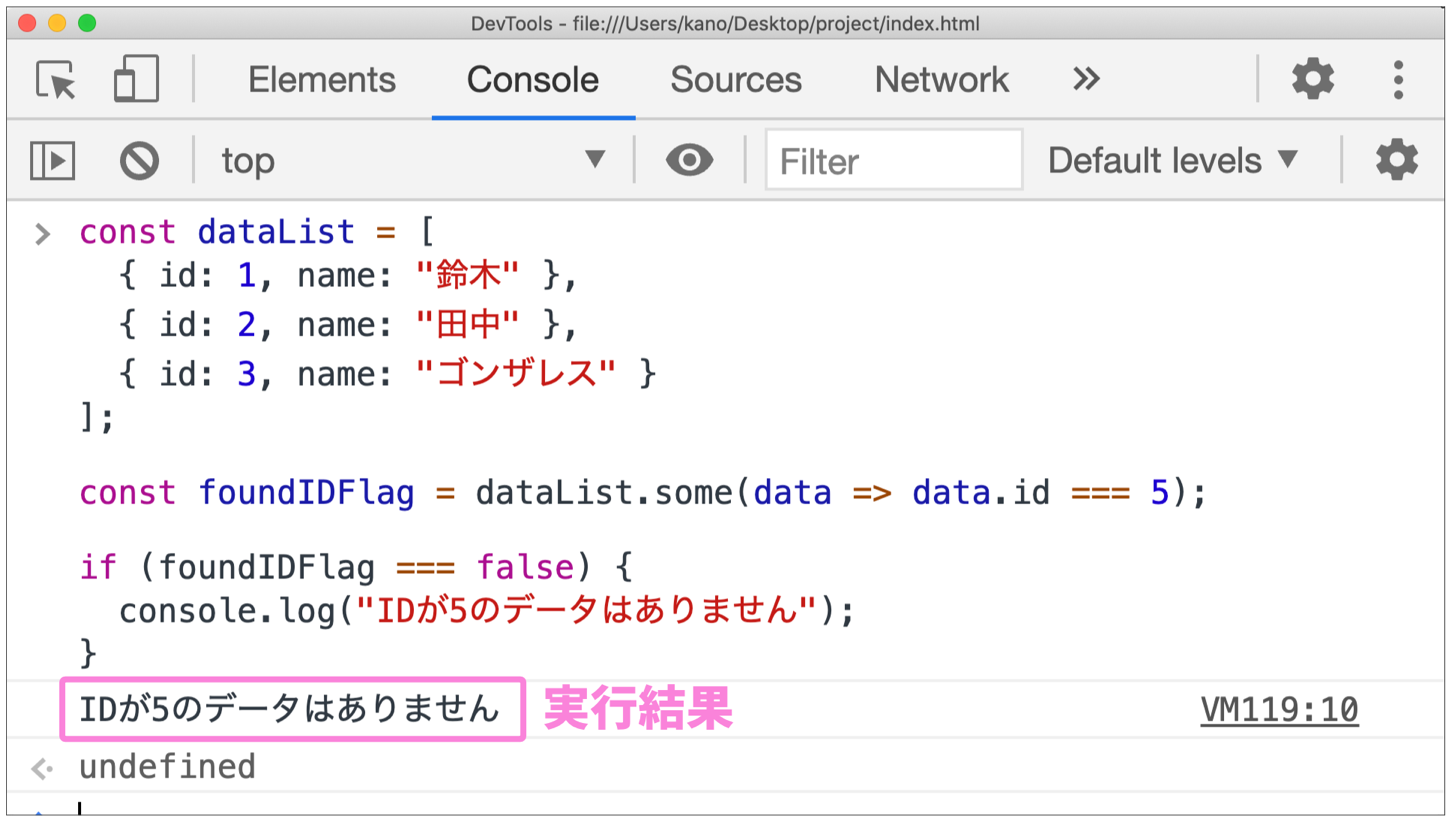
A similar method is every(), which checks whether all elements in the array satisfy a condition.
const isNoValid = dataList.every(data => data.id !== 5);

if (isNoValid === true) {
  console.log("No data with ID 5 exists");
}
■ array.some()
- Meaning: checks whether at least one element in the array matches the condition
- Return value: boolean
■ array.every()
- Meaning: checks whether all elements in the array match the condition
- Return value: boolean
Column: Strict condition checks in if statements
As a side note on the code above, if (isFound === false) is written that way for strict evaluation. if (!isFound) gives the same result here, but at ICS we prefer === for explicit checks because it avoids accidental misjudgments in certain cases.
For example, suppose you had the following code (the same idea applies to undefined). The intent is to exclude the case where someValue is null. However, this code has a problem: if someValue is 0, it also matches the condition. To avoid incorrectly treating numeric 0 or an empty string "" as a match, it is better not to omit the explicit comparison in an if condition.
The examples below use TypeScript to make the types clear, but the idea is the same in JavaScript.
const someValue: number | null = getValue(); // A number or null
if(!someValue){
  console.log("Excluded"); // With this check, 0 is also treated as excluded
}
For null and undefined, use != null. The article JavaScript の undefined と null を完全に理解する is a useful reference.
const someValue: string | null | undefined = getValue(); // A string, null, or undefined
if(someValue != null){
  console.log("The value is neither null nor undefined"); // An empty string is not mistakenly excluded
}
Flattening multidimensional (jagged) arrays
Suppose you have the following array. How would you create a one-dimensional array containing only the elements from hash_tags?
const dataList = [
  {
    tweet: "Work has been hectic since this morning.",
    hash_tags: ["commute", "early-riser", "morning-sky"]
  },
  {
    tweet: "I ended up having Japanese BBQ for lunch.",
    hash_tags: ["lunch", "japanese-bbq"]
  },
  {
    tweet: "I'm going home to play the new game!",
    hash_tags: ["going-home", "gaming", "daily-life"]
  }
];
A verbose version would look like this. It loops over dataList, then loops again over each nested hash_tags array.
👎 Verbose version
const tagList = [];
dataList.forEach(data => {
  data.hash_tags.forEach(tag => {
    tagList.push(tag);
  });
});

console.log(tagList);
Since you want to remove one array nesting level and turn the result into another array, flatMap() is a good fit. The flatMap() method runs map() first and then flat(). The flat() method converts a multidimensional array (also called a jagged array) into a one-dimensional array.
👍 Concise version
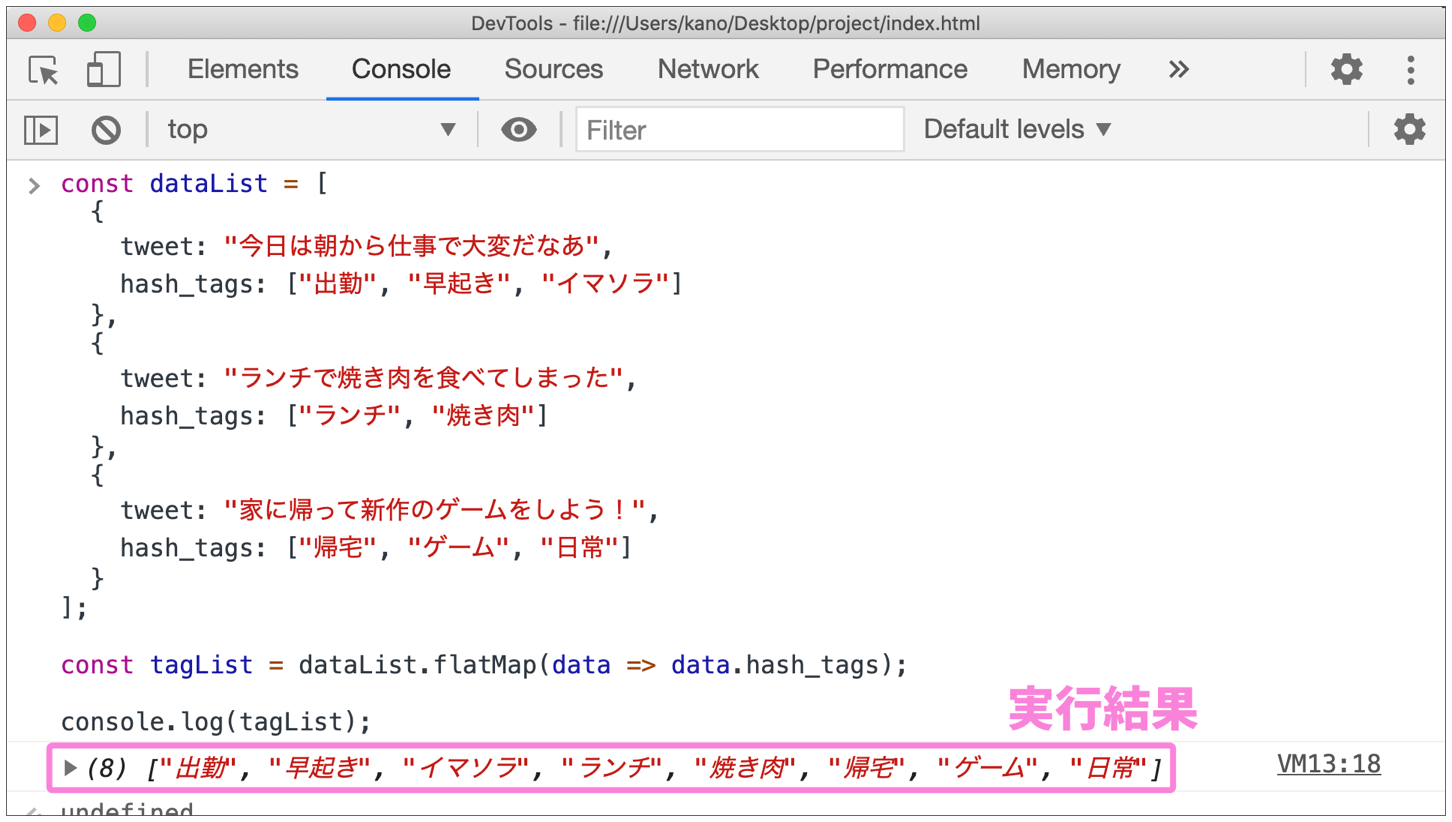
const tagList = dataList.flatMap(data => data.hash_tags);

console.log(tagList);
Output
■ array.flat()
- Meaning: flattens an array. You can specify the depth to flatten with an argument, and the default is
1 - Return value: array
■ array.flatMap()
- Meaning: runs
map()followed byflat(). The depth offlat()is1 - Return value: array
Callback parameters for Object.entries()
When you run Object.entries(targetObject), it returns an array like [[key1, value1], [key2, value2], ...].
Let’s use the following object as an example.
const myObject = {
  age: 18,
  name: "Suzuki",
  address: "Fukuoka"
};
If you call Object.entries(targetObject) on an object and process the returned array with forEach(), you might write code like the following. Focus on the callback parameter entry passed to forEach().
👎 Verbose version
Object.entries(myObject)
  .forEach(entry => {
    console.log(`Key: ${entry[0]}`);
    console.log(`Value: ${entry[1]}`);
  });
Accessing values as entry[0] and entry[1] is verbose. It is not immediately obvious which is the key and which is the value. You can make the code simpler by using array destructuring. Notice that A and B below have the same meaning.
// A
const entry = ["key", "value"];
// B
const [key, value] = ["key", "value"];
Rewriting the previous processing with array destructuring gives you the following. Compared with accessing entry[0] and entry[1], this is shorter and more intuitive.
👍 Concise version
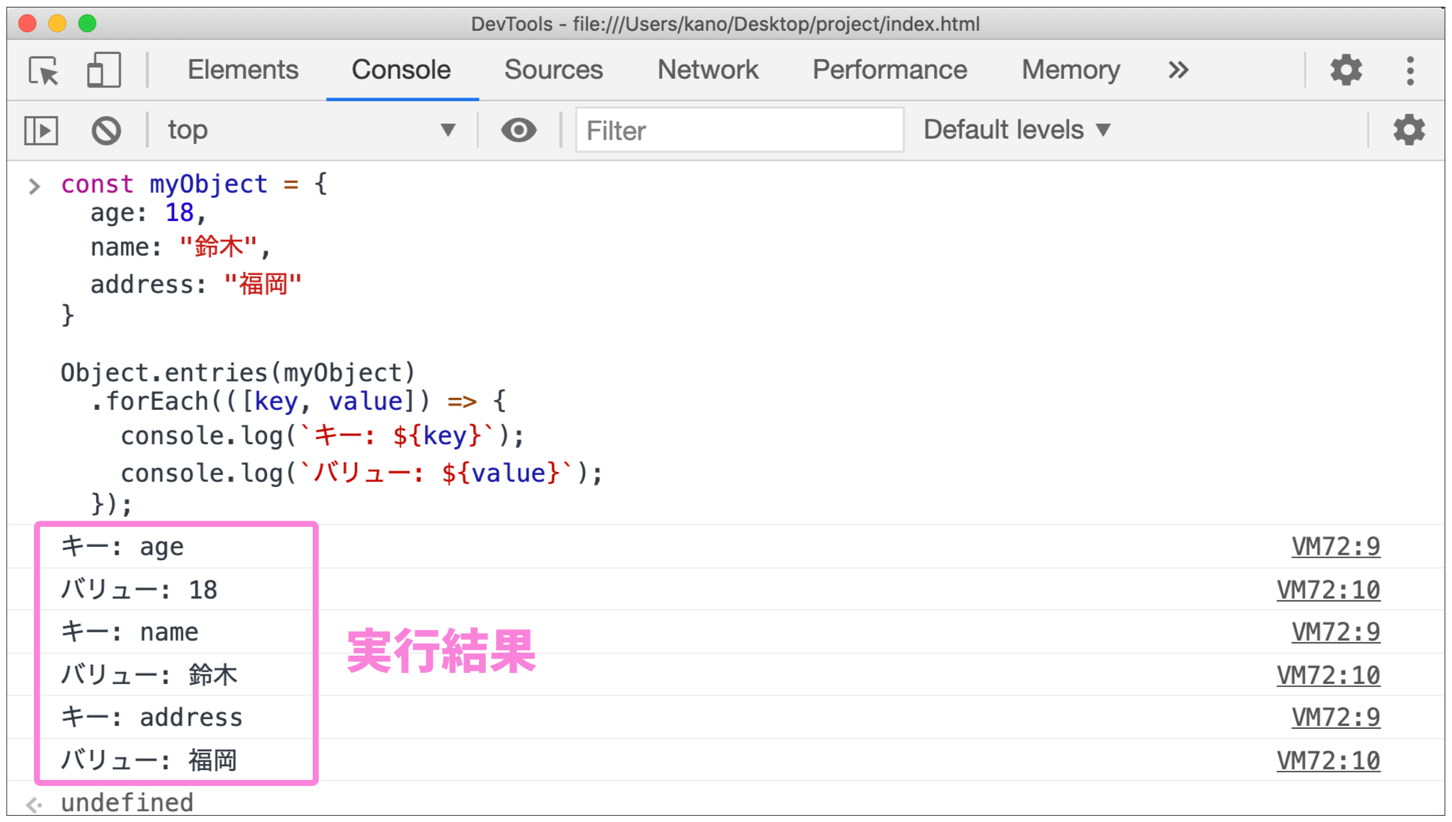
Object.entries(myObject)
  .forEach(([key, value]) => {
    console.log(`Key: ${key}`);
    console.log(`Value: ${value}`);
  });
Output
Don't wrap document.querySelectorAll() in Array.from() unnecessarily
document.querySelectorAll() is a method that returns the elements matching a selector. Its return type is NodeList.
When processing each returned element with forEach(), you will often see code that wraps the result in Array.from() for no reason.
👎 Verbose version
Array.from(document.querySelectorAll(".foo"))
  .forEach((element) => {
    element.addEventListener("click", () => {
      console.log("Clicked");
    });
});
The NodeList returned by document.querySelectorAll() already has a forEach() method, so there is no need to use Array.from() here. The following is sufficient.
👍 Concise version
document.querySelectorAll(".foo")
  .forEach((element) => {
    element.addEventListener("click", () => {
      console.log("Clicked");
    });
});
Use Array.from() when you want to use array-specific methods such as map(), every(), or filter().
The following function checks whether all checkbox input elements are selected. Since it uses the array method every(), it converts the NodeList with Array.from().
const checkedAll = () =>
  Array.from(document.querySelectorAll(`input[type="checkbox"]`)).every(
    (element) => element.checked
  );
You can also use the spread syntax instead of Array.from().
const checkedAll = () =>
  [...document.querySelectorAll(`input[type="checkbox"]`)].every(
    (element) => element.checked
  );
Conclusion: Clean Up Array Handling and Write Simpler Code
Array operations appear constantly in frontend development. Writing concise code that is less likely to introduce bugs improves development efficiency across the whole team.
Writing code without mutating the original array does introduce a slight runtime overhead, but in most situations the impact is negligible. As discussed in the article ECMAScript 2015+の構文でJSの実行性能は変化するのか, we pay close attention to performance, but immutable operations are rarely a practical performance risk.
JavaScript continues to gain new capabilities. Be sure to check out the following articles as well.