
When building input forms, what kinds of measures do you take? You are probably optimizing forms by reviewing the number of fields, clarifying each input step, and so on. Doing so can improve conversion rates and reduce user stress. Input form optimization is also called EFO, or Entry Form Optimization.
Many things should be considered during the site design phase, but there are also many important considerations in coding. In this article, I’ll introduce the points HTML coders should keep in mind when building entry forms.
This article is intended to introduce HTML coding techniques suited to modern browsers. It does not present best practices for design or accessibility.
Support autofill
Google Chrome (desktop, iOS, Android) and Safari (macOS, iOS) provide a feature that automatically fills contact information into forms. As shown in the video below, autofill can complete tedious input in one go.
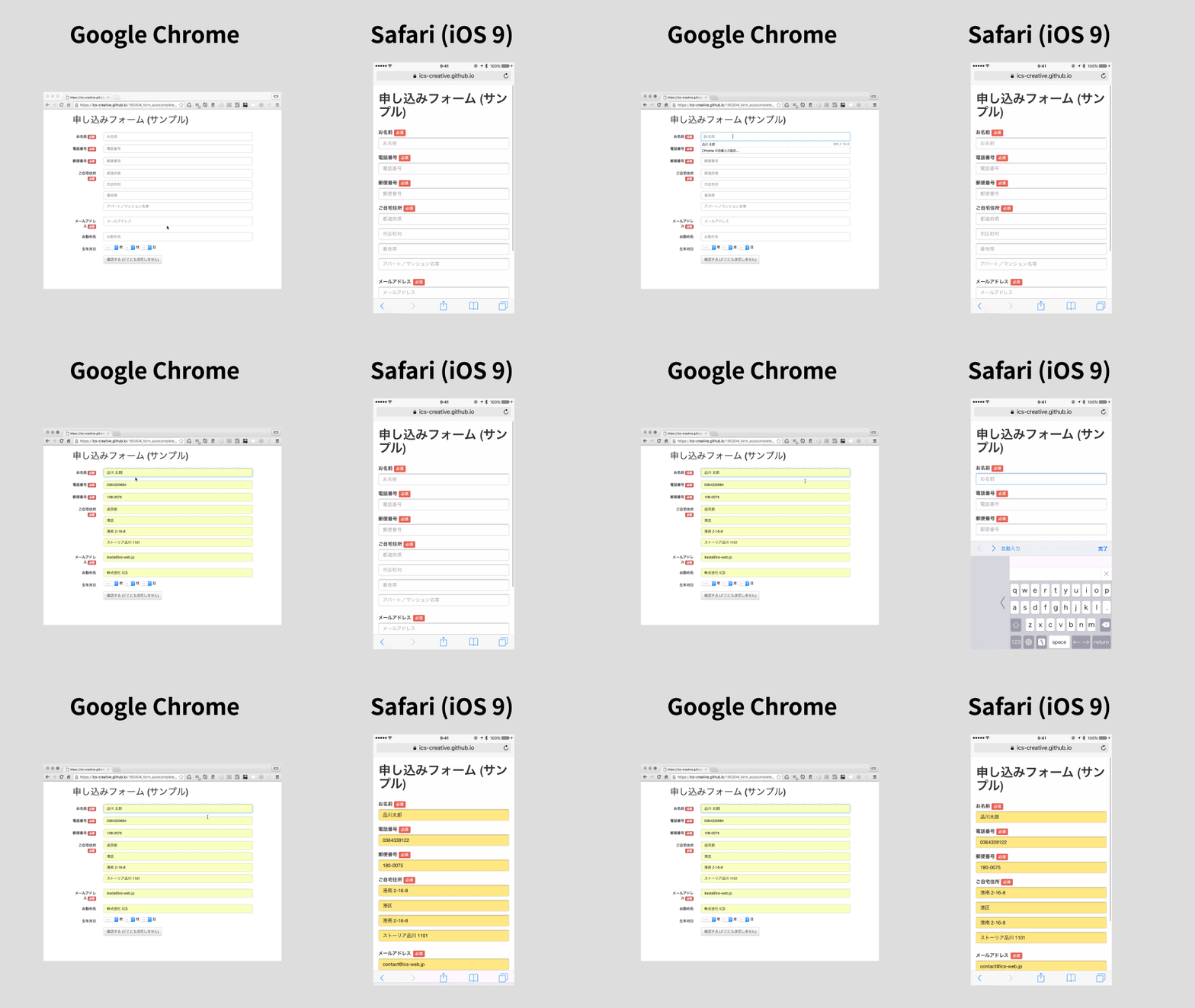
To use this feature in the browser, configure the following settings:
- Fill out forms automatically in Chrome
- Fill in personal information in Safari on iPhone
- AutoComplete web forms with Microsoft Edge
Not everyone has autofill enabled, but for users who rely on it regularly, it significantly reduces the burden. Form abandonment rates are high to begin with, so adopting autofill support is an effective way to reduce drop-off even slightly. A demo and source code are provided below, so give them a try.
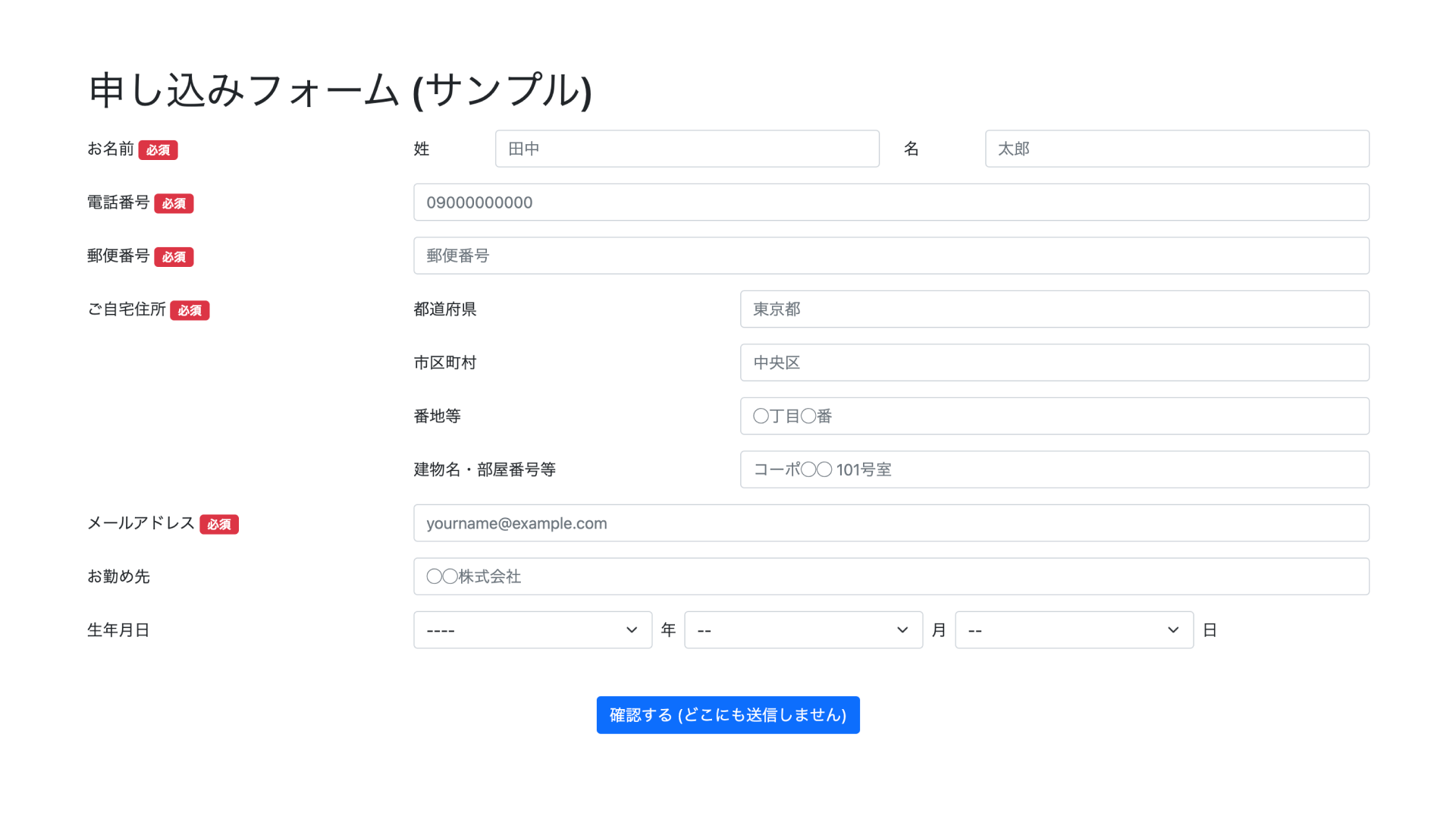
First, let’s look at how to write input elements so they support autofill.
How to write the autocomplete attribute
<input type="text" name="name" autocomplete="name" />
You can enable autofill for forms by setting the autocomplete attribute on input, textarea, and select elements. When this attribute is configured properly, users can automatically fill in information already stored in their browser. Common values are listed below.
name: Full namefamily-name: Family namegiven-name: Given nameemail: Email addresspostal-code: Postal codeaddress-level1: Prefecture / stateaddress-level2: City / ward / municipalityaddress-line1: Street address / apartment name (line 1)address-line2: Street address / apartment name (line 2)organization: Company nameoff: Disable autofill
There are also values for birth date, gender, credit card information, and more. For details, see the AutoFill section of the WHATWG Standard.
Many websites set autocomplete="off" for security reasons, but modern browsers ignore it in most cases, so setting it to off has little practical effect. If some users rely on autofill, it makes sense to configure forms so those users can use it easily.
Here are a few points to keep in mind when using this attribute:
- If prefectures are implemented with a
selectelement, autofill may not work. Using aninputelement is the safer choice - Birth date autofill works only in Safari. Chrome does not currently support it
Set appropriate values for the name attribute on input elements
✕ Bad example
<input type="text" name="YBBG" />
◯ Good example
<input type="text" name="postal-code" autocomplete="postal-code" />
If you look at entry forms across different sites, naming conventions for name values vary widely. For example, some sites use name1 or familyname for a family name, or zip and postal for postal code. In extreme cases, I have even seen YBBG as a parameter name, standing for “Yu Bin Ban Gou” (Japanese for “postal code”).
When the autocomplete attribute is not set, it appears that browsers determine what information to autofill by looking at the name value, so you should use meaningful names. A safe approach is to use the same names defined for the autocomplete attribute. If you omit autocomplete and use vague name values, autofill may fail to work, or it may fill in the wrong fields, creating extra work for the user. Be careful when assigning name attributes.
Move beyond old-fashioned form conventions
Have you ever been frustrated by a form that forces full-width characters when entering an address? Many people have had the experience of entering a street number only to be told, “Please enter using full-width characters.”
Full-width and half-width numerals should be easy to convert on the server side, yet users are often forced to re-enter half-width numerals as full-width numerals.
To avoid this kind of inconvenience, work with your system engineers and aim for input forms that are actually easy to use. Below are several improvements you can implement with relatively little effort.
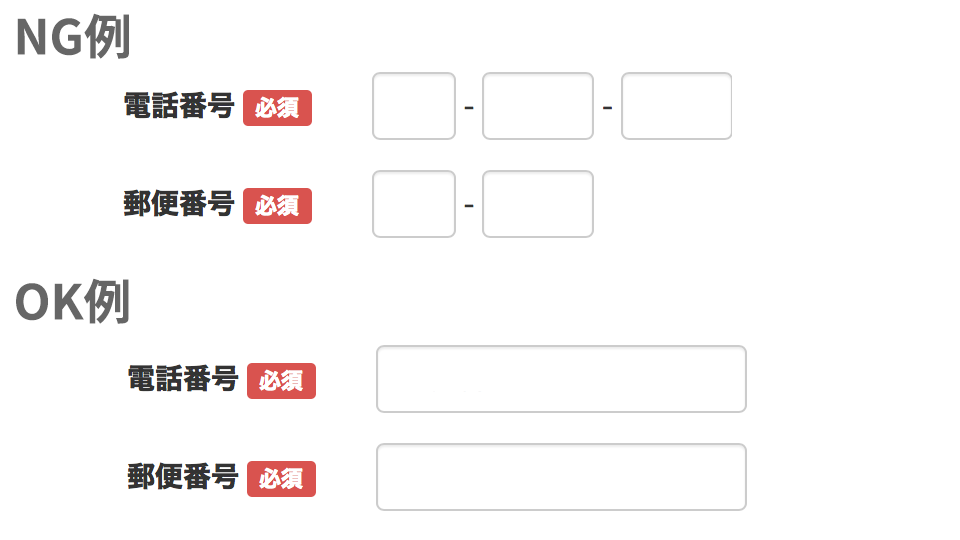
- Do not split phone number or postal code fields into multiple inputs. One reason is that autofill may not work, but even for manual entry, it is simply cumbersome. It is not mobile friendly
- Do not require full-width numerals in address fields. Accept both full-width and half-width input. Depending on the user’s level of digital literacy, they may not even understand the distinction
- If the kana type in the phonetic-name field differs, it should be converted on the server side
- Accept both half-width and full-width spaces
Set the optimal keyboard
Users do not access forms only from desktop browsers. Many also use cell phones. If the keyboard is not configured appropriately, users experience unnecessary friction during input, which can lead to lower conversion rates.
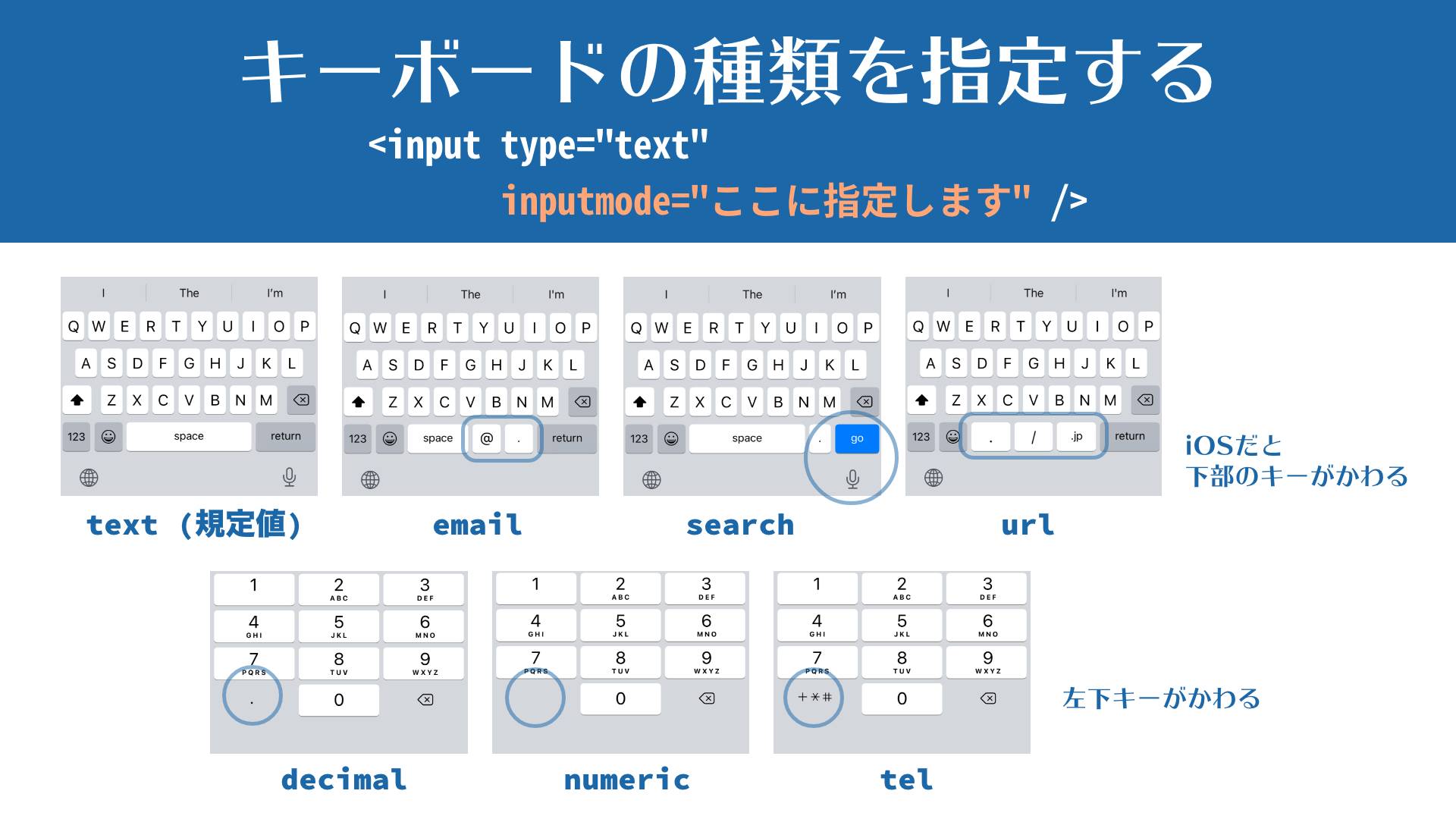
The following are just examples, but you should configure the most suitable keyboard for each field. There are two main ways to specify keyboard behavior:
- Use the
typeattribute - Use the
inputmodeattribute
Email address
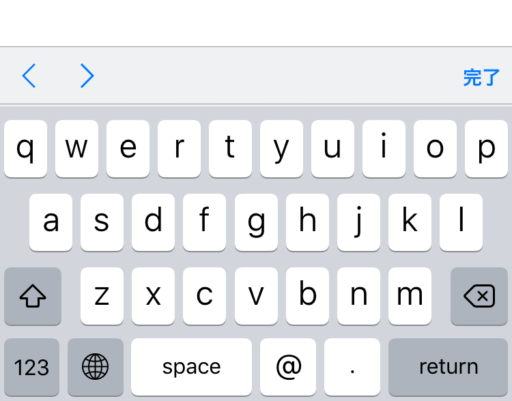
<input type="email" name="email" autocomplete="email" />
When you specify type="email", iOS displays a US keyboard, with @ and . keys shown next to the [Space] key.
Phone number
<input type="tel" name="tel" autocomplete="tel" />
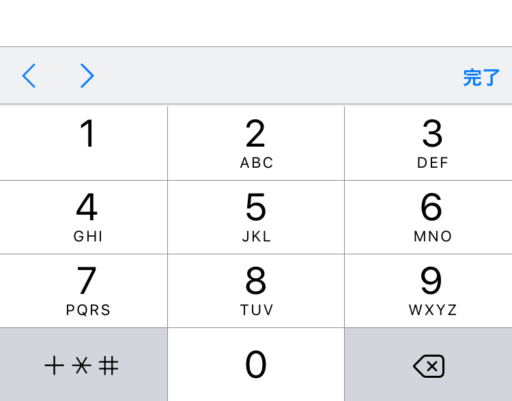
When you specify type="tel", a numeric keypad is displayed.
Fields for alphabetic input
<input name="username" type="text" autocomplete="username" autocorrect="off" autocapitalize="off" />
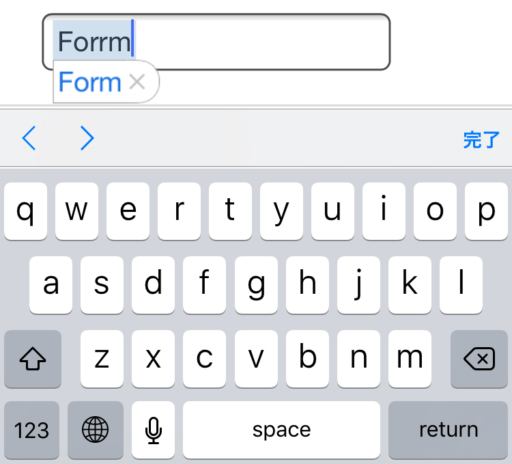
On iOS, alphabetic input triggers features such as automatically capitalizing the first letter (Auto Capitalize) and correcting spelling mistakes (Auto Correct). These assistive features are useful when entering prose, but in form fields such as usernames, they can prevent users from entering exactly what they intend and create frustration.
Set autocorrect="off" and autocapitalize="off" to disable these features for fields where they are unnecessary.
Ways to specify various keyboard input types
The type attribute on the input tag is convenient, but the available options are limited. By contrast, the inputmode attribute lets you specify the input method shown on the keyboard.
For example, if you want users to enter a URL, you can write it like this:
<input type="text" inputmode="url" />
Since many values are available, it is worth checking the reference.
Column: How to customize the Enter key
Using the enterkeyhint attribute on the input tag allows you to customize the label of the Enter key on virtual keyboards.
enterkeyhint="done": Doneenterkeyhint="go": Goenterkeyhint="next": Nextenterkeyhint="search": Searchenterkeyhint="send": Send
That said, the same effect can often be achieved by specifying the type attribute or the inputmode attribute mentioned above. If you are already using inputmode, there is usually no need to use enterkeyhint as well.
Show an alert when the user leaves the page
Have you ever accidentally closed a form while entering information and had to start all over again? Some users may retry, but others will simply leave. By implementing the following JavaScript, you can show a warning when the user tries to navigate away and reduce accidental abandonment.
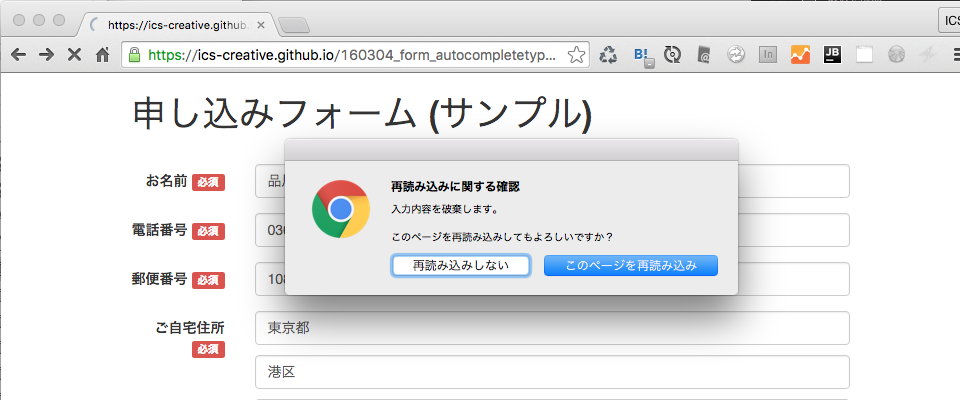
window.addEventListener("beforeunload", (event) => {
  const confirmationMessage = "Your input will be discarded.";
  event.returnValue = confirmationMessage;
  return confirmationMessage;
});
The beforeunload event is not supported in iOS Safari.
Conclusion
Optimizing entry forms involves more than site structure and visual design. There are many things that should also be considered during the coding phase. Even small adjustments like the ones introduced above can greatly improve usability. Markup engineers should also build forms with conversion-rate improvement in mind.
For more on improving web accessibility for input forms, as well as form validation, see the following articles.